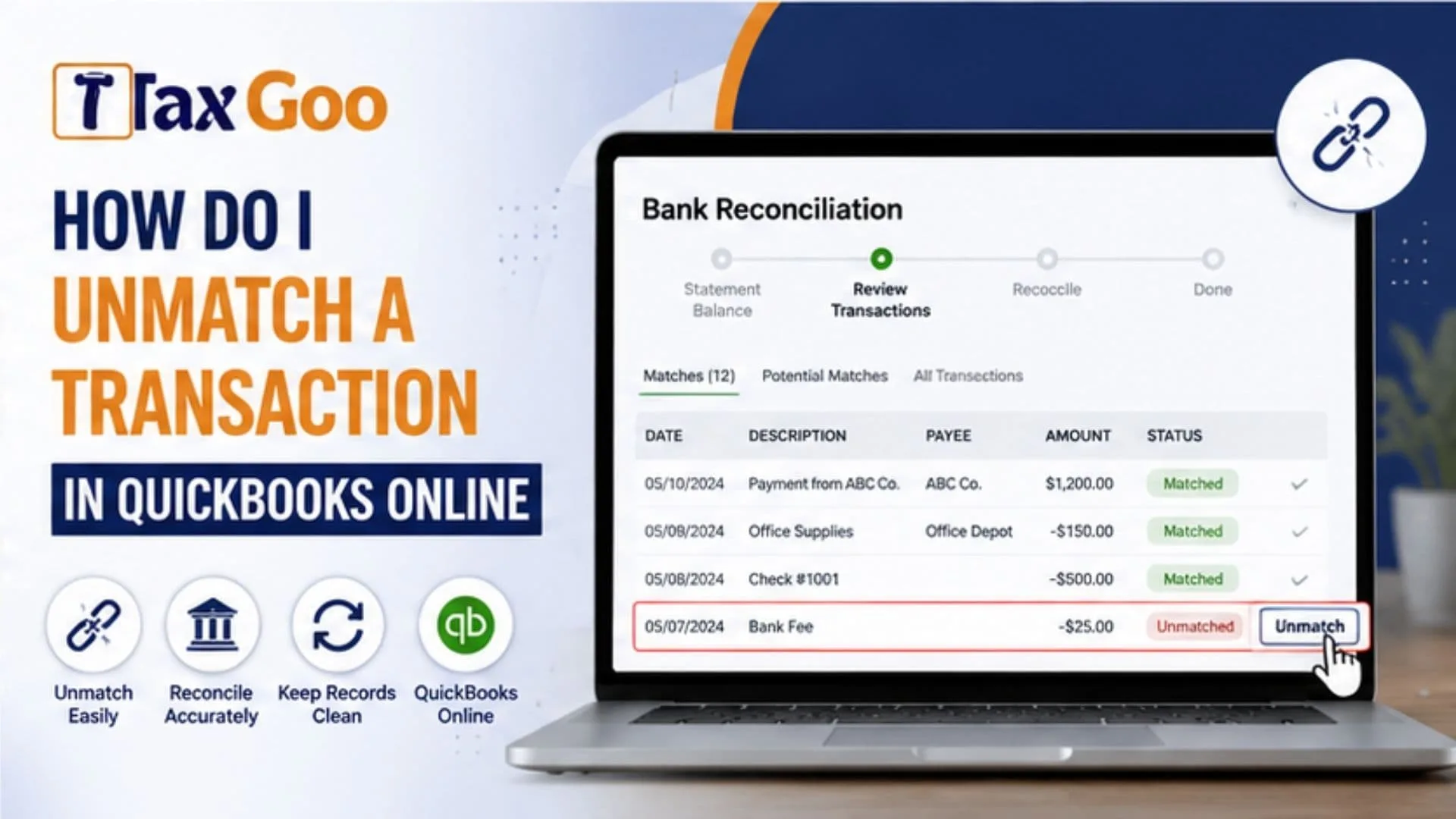
If you are asking, “How do I unmatch a transaction in QuickBooks Online?”, you are probably dealing with a bank transaction that QuickBooks connected to the wrong invoice, expense, deposit, bill, or existing record. QuickBooks Online bank transactions are designed to help organize downloaded banking activity by matching bank and credit card transactions with records already entered in your accounting system. This can save time and reduce duplicate entries, but an incorrect QuickBooks transaction match can still happen. Maybe two payments had the same amount, you selected the wrong customer payment, or a downloaded expense was connected to an unrelated transaction. Fortunately, QuickBooks allows you to undo a matched transaction and send the downloaded banking item back for review. Once the transaction is unmatched, you can examine the date, amount, payee, category, and related accounting record before matching or categorizing it correctly. Understanding how to undo a bank transaction in QuickBooks Online can help keep your bank feed accurate and make future reconciliation much easier.
Why Would You Need To Unmatch A Transaction?
QuickBooks tries to identify possible matches when transactions arrive from a connected bank or credit card account. A match is useful when the downloaded banking transaction represents something that already exists in your books.
Problems occur when the wrong records become connected.
For example, you might have two customer payments for $500 on similar dates. If the downloaded $500 deposit is matched to the wrong payment, your customer balances and banking records may no longer reflect what actually happened.
You may also need to unmatch a transaction if:
- The transaction was matched to the wrong invoice.
- A payment was connected to an incorrect deposit.
- An expense was linked to the wrong existing record.
- The wrong transaction was selected while reviewing bank activity.
- You need to review the banking transaction again before deciding what to do with it.
Unmatching gives you another opportunity to process the downloaded transaction correctly.
How To Unmatch A Transaction In QuickBooks Online
The current QuickBooks Online workflow places reviewed bank transactions in the Posted section of Bank transactions. Intuit states that unmatching disconnects the downloaded banking transaction from the QuickBooks record and returns the downloaded item to the Pending tab.
Follow these steps:
- Sign in to your QuickBooks Online account.
- Open All apps.
- Select Accounting.
- Choose Bank transactions.
- Select the bank or credit card account containing the transaction.
- Open the Posted tab.
- Locate the transaction you want to correct.
- Find the blue transaction link in the Added or Matched column.
- Review the connected transaction to confirm that you selected the right item.
- Select Undo from the Action column.
After you select Undo, the downloaded banking transaction returns to the Pending tab, where you can review it again and choose the correct action.
Menu wording can occasionally look slightly different because QuickBooks updates its interface, but Bank transactions is the main area to look for downloaded bank activity.

What Happens After You Unmatch The Transaction?
Unmatching does not simply erase the downloaded transaction from your bank feed. Instead, QuickBooks separates it from the accounting record it was previously connected to.
The downloaded banking item becomes available for review again.
At that point, you can:
- Match it to the correct existing transaction.
- Categorize it if no existing record should be matched.
- Review the payee or category.
- Compare the amount and date with your bank statement.
- Investigate whether another transaction already exists in QuickBooks.
This is important because matching and categorizing are different actions. Matching connects downloaded bank activity to a record already in QuickBooks. Categorizing generally records the downloaded activity in your books when an appropriate existing record is not available.
Choosing the wrong option can lead to duplicate income or expenses.
Be Careful With Reconciled Transactions
Before undoing a transaction, check whether the transaction has already been included in a completed bank reconciliation.
Changing reconciled activity can affect the reconciliation and potentially create differences between QuickBooks and your bank statement.
Intuit specifically recommends contacting an accountant before changing a transaction that has already been reconciled because the correction can significantly affect the accounts.
If the transaction has not been reconciled yet, correcting the match is generally much simpler.
For reconciled transactions, it is better to understand the accounting impact before making changes rather than repeatedly undoing transactions until the numbers appear correct.
How To Avoid Incorrect Transaction Matches
A few simple checks can reduce matching mistakes.
First, compare more than the amount. Look at the transaction date, customer or vendor, reference number, description, and related invoice or bill.
Second, avoid creating a new expense or deposit if the same transaction has already been entered manually. Doing so can create duplicates.
Third, review suggested matches carefully instead of automatically accepting every recommendation.
Finally, reconcile your accounts regularly. Frequent reconciliation makes unusual balances, duplicate transactions, and incorrect matches easier to identify while the activity is still recent.
Clean bank transaction records make reporting, bookkeeping, and account reconciliation much easier.

Frequently Asked Questions
Does Unmatching Delete The Transaction?
No. Unmatching separates the downloaded bank transaction from the QuickBooks record and returns the downloaded item for review.
Can I Match The Transaction Again?
Yes. After undoing the match, you can review the transaction and connect it to the correct existing record.
Should I Unmatch A Reconciled Transaction?
Use caution. Changing a reconciled transaction can affect your completed reconciliation, so professional accounting guidance may be appropriate.
Why Did QuickBooks Match The Wrong Transaction?
Transactions with similar dates or amounts can produce possible matches. Always review the suggested record before accepting it.
Related Keywords
unmatch transaction QuickBooks Online, undo matched transaction QuickBooks, QuickBooks bank transaction match, QuickBooks Online bank transactions, undo bank transaction QuickBooks Online, fix matched transaction QuickBooks, QuickBooks transaction matching, QuickBooks bank feed correction, incorrect transaction QuickBooks, QuickBooks Pending transactions, QuickBooks Posted transactions, match bank transactions QuickBooks Online