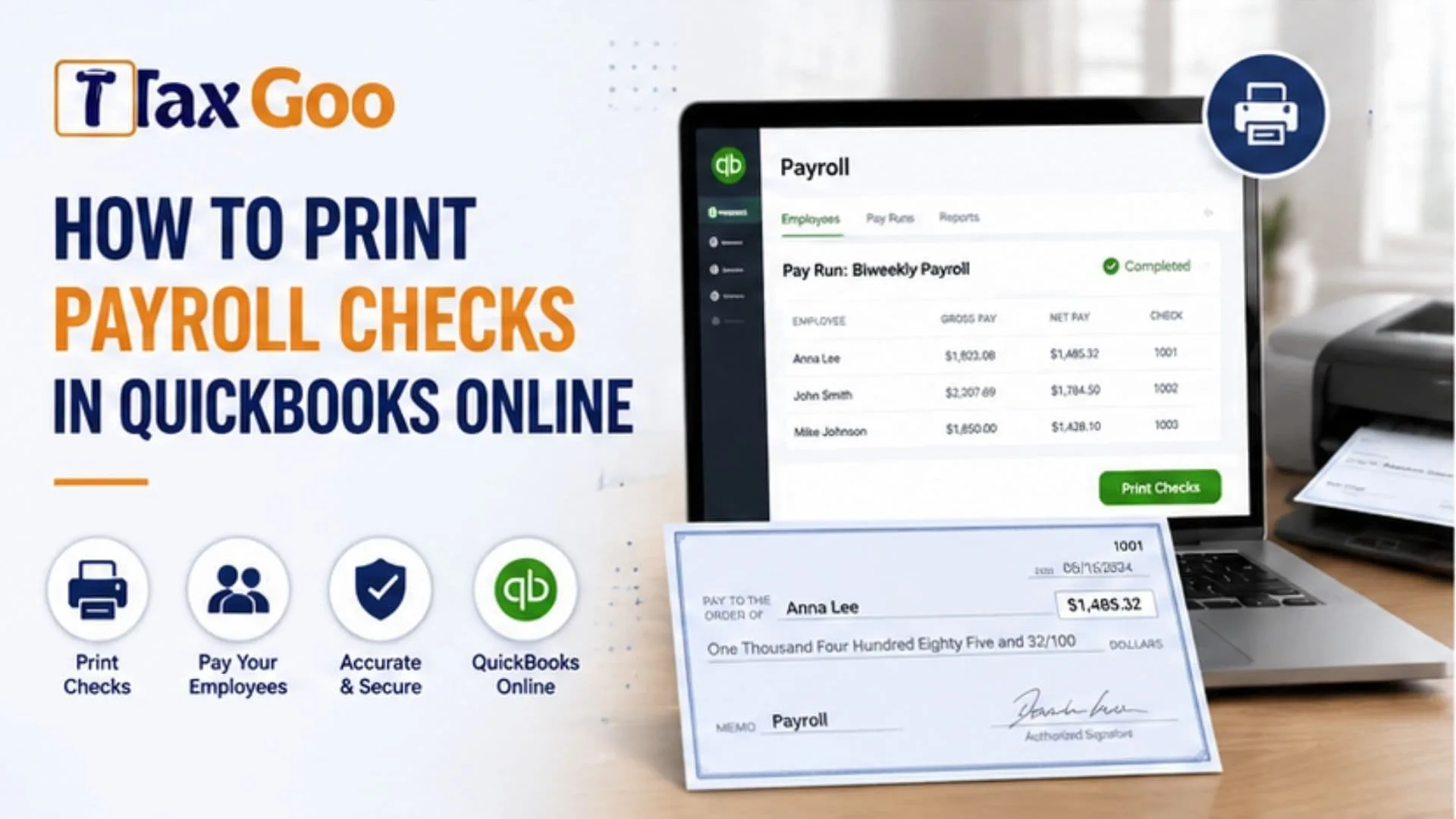
If you are searching for how to print payroll checks in QuickBooks Online, the process starts before you press the Print button. QuickBooks Online Payroll allows eligible users to prepare employee payroll and print paychecks using compatible check stock, while businesses paying employees through direct deposit can print pay stubs instead. Before printing a payroll check, you should review your paycheck printing settings, select the appropriate check format, align the check stock with your printer, confirm the employee and payroll information, and make sure you are printing the correct paycheck. QuickBooks payroll check printing can be especially useful for businesses that pay some or all employees with physical checks rather than direct deposit. You can also return to the Paycheck list to locate payroll history and print or reprint available paycheck information. Setting up the printer correctly matters because poor alignment can place employee names, dollar amounts, or other paycheck information in the wrong position. A few minutes of preparation can save several sheets of check stock and plenty of frustration.
Set Up Payroll Check Printing First
Before printing your first paycheck, configure the payroll printing preferences.
In QuickBooks Online Payroll:
- Open Settings.
- Select Payroll settings.
- Find the Printing section.
- Select Edit.
- Choose the appropriate printing option.
- Select your check format if you are printing paychecks.
- Use the alignment option if necessary.
- Save your settings.
QuickBooks currently provides choices for printing pay stubs on plain paper or paychecks on QuickBooks-compatible check paper. Voucher options can include a paycheck with one or two pay stubs, depending on the selected check stock.
Completing this setup before payday helps avoid unnecessary printer adjustments when employees are waiting for their checks.
Use Compatible Check Paper
Ordinary printer paper cannot function as a negotiable payroll check.
If you plan to print actual employee paychecks, select check stock that works with the format configured in QuickBooks.
QuickBooks Online Payroll’s current printing instructions specify QuickBooks-compatible check paper when the paycheck option is selected.
Check the physical layout before loading the paper.
Pay attention to:
- Check position
- Number of pay stub sections
- Paper orientation
- Printer tray
- Alignment
- Check sequence
Testing alignment before printing a full payroll run can prevent wasted check stock.
If you recently changed printers, check stock, browsers, or office computers, review the alignment again before printing employee checks.
How To Print Payroll Checks In QuickBooks
Once payroll has been processed and your printing preferences are ready, open the Paycheck list.
The current QuickBooks Online Payroll process is:
- Go to All apps.
- Select Payroll.
- Choose Employees.
- Select Paycheck list below Run payroll.
- Find the paycheck you want to print.
- Use the available filters if you need to change the employee or date range.
- Select the relevant printing action.
- Open the paycheck or pay stub preview.
- Select the printer icon.
- Confirm your printer settings and print.
Intuit’s current instructions use the Paycheck list as the primary location for printing and reprinting paycheck or pay stub information.
Before clicking the final Print command, confirm that the correct check stock is loaded and that the preview looks properly aligned.
How To Reprint A Payroll Check Or Pay Stub
Sometimes you need another copy because a paycheck was damaged, a pay stub was misplaced, or payroll records need to be reviewed.
QuickBooks Online Payroll allows you to return to the Paycheck list and locate historical payroll by adjusting the employee or date filters. From there, you can open the appropriate printing option and use the preview to print the document again.
However, be careful when dealing with an actual negotiable paycheck.
Printing another document is not always the same as safely replacing a lost employee check. If the original check could still be deposited or cashed, follow your company’s payment controls and banking procedures before issuing a replacement.
You want to avoid creating two valid payments for the same payroll obligation.
What If The Employee Uses Direct Deposit?
Employees paid through direct deposit generally do not need a physical negotiable payroll check because the payment goes to their bank account electronically.
They may still need a pay stub showing payroll information.
QuickBooks Online Payroll provides a plain-paper pay stub printing option in its payroll printing preferences.
A pay stub can provide employees with useful payroll details while avoiding confusion about whether the printed document represents an additional payment.
Make sure employees understand the difference between a paycheck and a pay stub, especially when your business uses multiple payment methods.
Fix Payroll Check Alignment Problems
One of the most common printing problems is incorrect alignment.
You might see:
- Amounts printing too high.
- Text printing below the intended area.
- Employee information shifting sideways.
- Pay stub information appearing in the wrong section.
- Check details not fitting the check stock.
Return to your payroll printing settings and use the check alignment feature.
It is wise to test alignment before using valuable check stock. If your printer provides scaling options, verify that automatic resizing is not unexpectedly changing the layout.
Intuit notes that printing problems may involve printing preferences, printer setup, or check alignment.
Also confirm that you selected the correct voucher format for the physical paper loaded into the printer.
Review Payroll Before Printing
Printing should be one of the final steps, not the first opportunity to review payroll.
Before handing checks to employees, confirm:
- Employee name
- Pay period
- Pay date
- Gross wages
- Deductions
- Taxes
- Net pay
- Payment method
Catching a payroll error before distributing the checks is much easier than correcting payments afterward.
Keep payroll records organized and protect printed checks because they contain sensitive financial information.

Frequently Asked Questions
Can QuickBooks Online Print Payroll Checks?
QuickBooks Online Payroll supports paycheck printing using compatible check stock when the appropriate printing preferences are configured.
Where Do I Find Previous Paychecks?
Go to Payroll, Employees, and then Paycheck list. Use the date or employee filters to locate the required paycheck.
Can I Print Pay Stubs On Plain Paper?
Yes. QuickBooks Online Payroll includes an option for printing pay stubs on plain paper.
Why Is My Payroll Check Printing Incorrectly?
Check the selected paper format, printer settings, scaling, orientation, and check alignment.