
The NYC DOE Payroll Portal is the official online hub where New York City Department of Education employees access pay stubs, salary history, tax forms, direct deposit settings, and personal payroll information without having to chase down paper records or wait on hold for HR. If you’re a teacher, administrator, school nurse, paraprofessional, or any other NYC DOE employee, mastering the Payroll Portal (found at payrollportal.nycboe.net) means you can view your most recent paycheck, download your W-2 form during tax season, update your direct deposit account details, check your salary step status, and resolve basic payroll questions—all from your laptop or phone. This system works hand-in-hand with HR Connect and NYCAPS Employee Self-Service (ESS), creating a complete ecosystem for managing your employment, benefits, and earnings information digitally. For new hires, the DOE Payroll Portal login process can feel confusing because you’ll need your DOE Outlook username, password, and either your Employee Identification Number (EIN) or EIS number to get started—and if any piece is wrong or not yet activated in the system, you’ll hit an error screen. Throughout this guide, we’ll break down how to log in step-by-step, where to find each key feature (pay statements, tax documents, payroll history, flexible spending accounts, commuter benefits), what to do when you can’t access your account, and how to keep your payroll records organized so tax time doesn’t turn into a treasure hunt. Whether you’re enrolling in direct deposit for the first time, printing old pay stubs for a mortgage application, or just trying to understand why your login isn’t working yet, this is your go-to resource for navigating the NYC DOE Payroll Portal with confidence and zero frustration.
What The NYC DOE Payroll Portal Actually Does
The Payroll Portal is your digital filing cabinet for everything related to your NYC Department of Education paycheck. It lets you view current and past pay statements, download annual W-2 tax forms, enroll in or update direct deposit banking information, check your payroll calendar to see upcoming pay dates, manage commuter benefits and flexible spending account (FSA) elections, and submit payroll-related inquiries directly to support staff.
Think of it as the self-service layer on top of the NYC payroll system—instead of calling or emailing HR for routine tasks, you log in and handle most things yourself.
How To Log In To The NYC DOE Payroll Portal
Logging in requires three pieces of information that new employees sometimes mix up, so let’s clarify each one.
- Go to payrollportal.nycboe.net in your browser.
- On the left side of the page, click “Login” (or “Sign In” depending on the current interface).
- Enter your Outlook Network/Email ID—this is the username part of your DOE email address before the @ symbol (for example, if your email is [email protected], your Network ID is jdoe).
- Enter your Outlook Password—the same password you use to log into your DOE email.
- Choose which identifier you want to use from the dropdown: Social Security Number (last 4 digits), EIS ID, or Employee ID (EIN).
- Enter the number you selected, then click “Sign In”.
If everything matches what’s in the system, you’ll land on your payroll dashboard. If you get an error, double-check that your email ID and password are exactly right, and that your Employee ID or EIS number is entered correctly without extra spaces.
First-Time Login And Account Activation
Brand-new employees often try to log in on their first day and hit a wall—that’s normal. Your payroll portal access typically activates after your employee record is fully processed in the system, which can take a few days to a couple of weeks depending on onboarding timing.
If you’re a first-time user, look for a “First Time Logging In” link on the login page and follow the setup wizard to create your initial password and security questions. You’ll need your Employee ID and the last four digits of your Social Security Number to verify your identity during setup.
Once activated, your login credentials are the same as your DOE Outlook email username and password, so you only need to remember one set.
Where To Find Your Pay Stubs
Pay stubs (also called pay statements or earnings statements) are one of the most-accessed features.
After logging in, navigate to Payroll Info > Pay Statement (or Employee Self Service > Payroll Register depending on which interface your district uses). You’ll see a list of your recent pay periods—click on the one you want to view or download. The system usually keeps the trailing 12 months of pay stubs readily available, and you can download them as PDFs for your records.
Save these files with clear names (example: “2026-01-15-PayStub-Doe.pdf”) so you can find them later during tax season or when applying for loans.
Downloading Your W-2 Tax Form
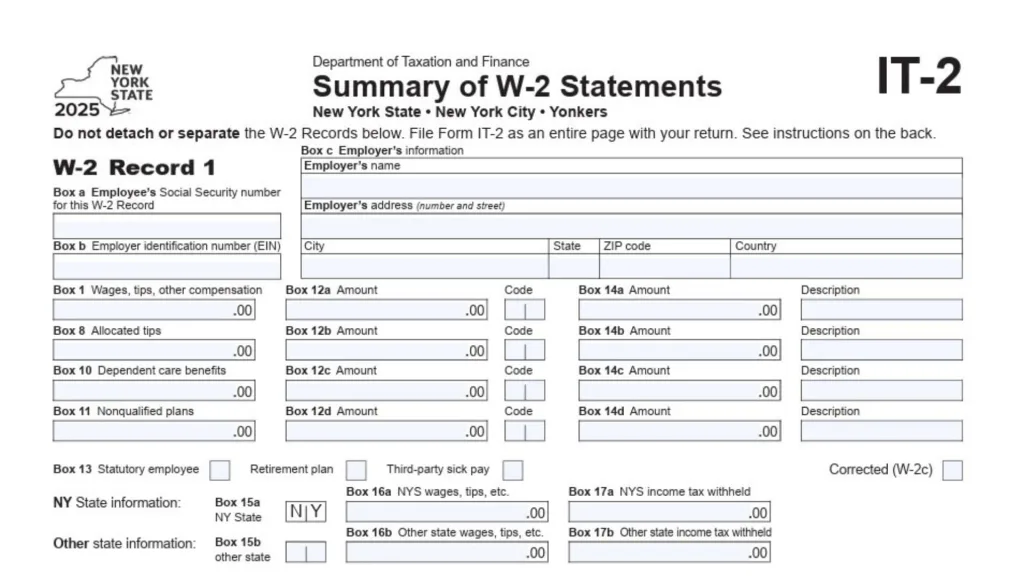
W-2 forms become available in the Payroll Portal each January for the previous tax year.
Look for a section labeled Tax Documents, W-2, or Year-End Statements in the navigation menu. Select the tax year you need, then download the PDF. If you lost your mailed W-2 or never received one, this is the fastest way to get a duplicate copy without waiting for HR to mail a replacement.
Print a copy and keep a digital backup—you’ll need it when filing your federal and state income taxes.
Enrolling In Or Updating Direct Deposit
Direct deposit is required for NYC DOE employees, so you’ll need to set this up early.
From your Payroll Portal dashboard, find Direct Deposit or Bank Information under your account settings. Enter your bank’s routing number (the 9-digit number at the bottom of your check) and your account number. Choose whether it’s a checking or savings account, then submit the change.
Changes usually take one or two pay cycles to process, so if you’re updating your bank, watch for your next paycheck to confirm it went to the right account—keep an eye on your old account just in case the timing overlaps.
Checking Your Salary History And Payroll Calendar
Salary history shows your earnings over time, which is useful for tracking raises, step increases, or verifying retro pay.
Navigate to Payroll Info > Payroll History or Salary History to see past pay amounts organized by pay period. You can often export this data to a spreadsheet if you need it for budgeting or financial planning.
The Payroll Calendar section shows upcoming pay dates (usually around the 1st and 15th of each month). Knowing these dates helps you plan bill payments and avoid overdrafts.
Managing Commuter Benefits And Flexible Spending Accounts
The Payroll Portal also handles enrollment in pre-tax benefit programs like commuter benefits (for transit and parking) and FSA accounts (for healthcare or dependent care expenses).
Look for a Benefits or Pre-Tax Programs section in the menu. Follow the enrollment wizard to elect how much you want deducted from each paycheck. These deductions reduce your taxable income, which can save you money, but remember that FSA funds are use-it-or-lose-it, so only contribute what you’ll actually spend.
Changes to these elections usually happen during open enrollment periods or within 30 days of a qualifying life event (like marriage or birth of a child).
Submitting Payroll Inquiries And Getting Help
If you have a question about your paycheck, deductions, or withholding that you can’t solve by looking at your pay stub, the Payroll Portal includes a Help or Submit Inquiry feature.
Navigate to Help > Submit Inquiry, fill out the online form with details about your issue (be specific: mention pay dates, amounts, and what you expected vs. what you received), and submit it. You’ll typically get a response within a few business days.
For login and access problems, use the Login Support or Forgot Password links on the login page—these tools can reset your password or unlock your account if you’ve been locked out after too many failed attempts.
Troubleshooting Common Login Issues
Here’s a quick diagnostic checklist when the portal won’t let you in.
- Wrong username or password: Your username is your DOE email ID (just the part before @schools.nyc.gov), and your password is your Outlook password—try logging into your DOE email first to confirm both are correct.
- Account not yet activated: New employees may need to wait a few days to a few weeks after hire date for their payroll account to activate—check with your payroll secretary or HR if it’s been more than two weeks.
- Wrong Employee ID or EIS number: Double-check the number you’re entering against your employee paperwork or ask your school’s payroll secretary for the correct identifier.
- Browser issues: Clear your cache and cookies, or try a different browser (Chrome and Edge usually work best).
- System maintenance: The portal occasionally goes offline for updates, usually outside business hours—try again later if you get a maintenance message.
If none of these solve it, contact DOE HR Connect at (718) 935-4000 for personalized assistance.
How The Payroll Portal Connects To HR Connect And NYCAPS ESS
The NYC DOE uses multiple systems that work together, which can be confusing at first.
- Payroll Portal (payrollportal.nycboe.net): Focused on pay stubs, W-2s, direct deposit, and payroll-specific tasks.
- HR Connect: The broader HR system for benefits enrollment, leave requests, certification, and general HR questions—accessed through the HR Connect Web Portal.
- NYCAPS Employee Self-Service (ESS) (nyc.gov/ess): A citywide system for viewing detailed pay stubs, updating personal information, requesting employment verification letters, and managing tax and benefits data.
Many employees use all three at different times. For pure payroll tasks (pay stubs, W-2s, direct deposit), stick with the Payroll Portal. For benefits and HR questions, use HR Connect. For employment verification or detailed tax data, try NYCAPS ESS.

Security And Data Protection Best Practices
Your Payroll Portal contains sensitive financial and personal information, so protect your login credentials carefully.
- Never share your username or password with anyone, even coworkers or friends.
- Use a strong, unique password that you don’t reuse on other websites.
- Log out completely when you’re done, especially if using a shared or public computer.
- Enable two-factor authentication if the system offers it (check account settings).
- Review your pay stubs regularly—if you see unexpected deductions or changes, report them immediately through the Submit Inquiry feature.
If you suspect someone accessed your account without permission, change your password immediately and contact HR Connect for support.
Tips For New Employees
Starting with the DOE means learning several new systems at once—here’s how to make the Payroll Portal part of your routine.
- Set up direct deposit during your first week so your first paycheck doesn’t get delayed.
- Bookmark payrollportal.nycboe.net and save your login username (your DOE email ID) in a password manager.
- Download and save your first few pay stubs so you have proof of income if you need to apply for an apartment, car loan, or credit card.
- Check your payroll calendar to know when to expect paychecks—your first check usually arrives on the pay date closest to the completion of your first two weeks of work.
- Enroll in commuter benefits early if you use public transit—the pre-tax savings add up fast.
If your Employee ID or EIS number isn’t working yet, ask your school’s payroll secretary—they can confirm which number to use and check if your account is activated.
When To Contact Support
Most Payroll Portal tasks are self-service, but some situations require human help.
Contact DOE HR Connect at (718) 935-4000 if you can’t log in after multiple attempts, if your pay stub shows an error or unexpected deduction, if you need to update information that isn’t available in the portal (like legal name changes), or if you’re missing a paycheck entirely.
For NYCAPS ESS issues (different from the DOE Payroll Portal), contact NYCAPS Central at [email protected].
For general payroll questions, start with the Submit Inquiry feature in the portal—it’s faster than phone calls and creates a written record of your question.
FAQs
What Is My DOE Payroll Portal Username?
Your username is your DOE Outlook email ID—the part before @schools.nyc.gov (example: if your email is [email protected], your username is “jdoe”).
When Will My Payroll Portal Account Activate?
New employees can usually log in a few days to two weeks after their start date, once HR fully processes your employee record in the system.
How Do I Get My W-2 From The Payroll Portal?
Log in, navigate to Tax Documents or W-2 section, select the tax year you need, and download the PDF—W-2s are available each January for the prior year.
Can I Change My Direct Deposit Account Online?
Yes, log in and go to Direct Deposit or Bank Information, enter your new routing and account numbers, and submit—changes take one or two pay cycles to process.
What If I Forgot My Payroll Portal Password?
On the login page, click “Forgot Password” and follow the reset steps, or log into your DOE Outlook email using the same password to confirm what it is.
Where Do I Find My Employee ID Or EIS Number?
Check your employee paperwork, pay stub, or ask your school’s payroll secretary—you’ll need one of these numbers to log in along with your username and password.
How Often Are Pay Stubs Updated?
Pay stubs appear in the portal on or shortly after each pay date, which is usually around the 1st and 15th of each month according to the DOE payroll calendar.
Can I Access The Payroll Portal From My Phone?
Yes, the portal is mobile-friendly—just go to payrollportal.nycboe.net in your phone’s browser and log in with the same credentials you use on a computer.