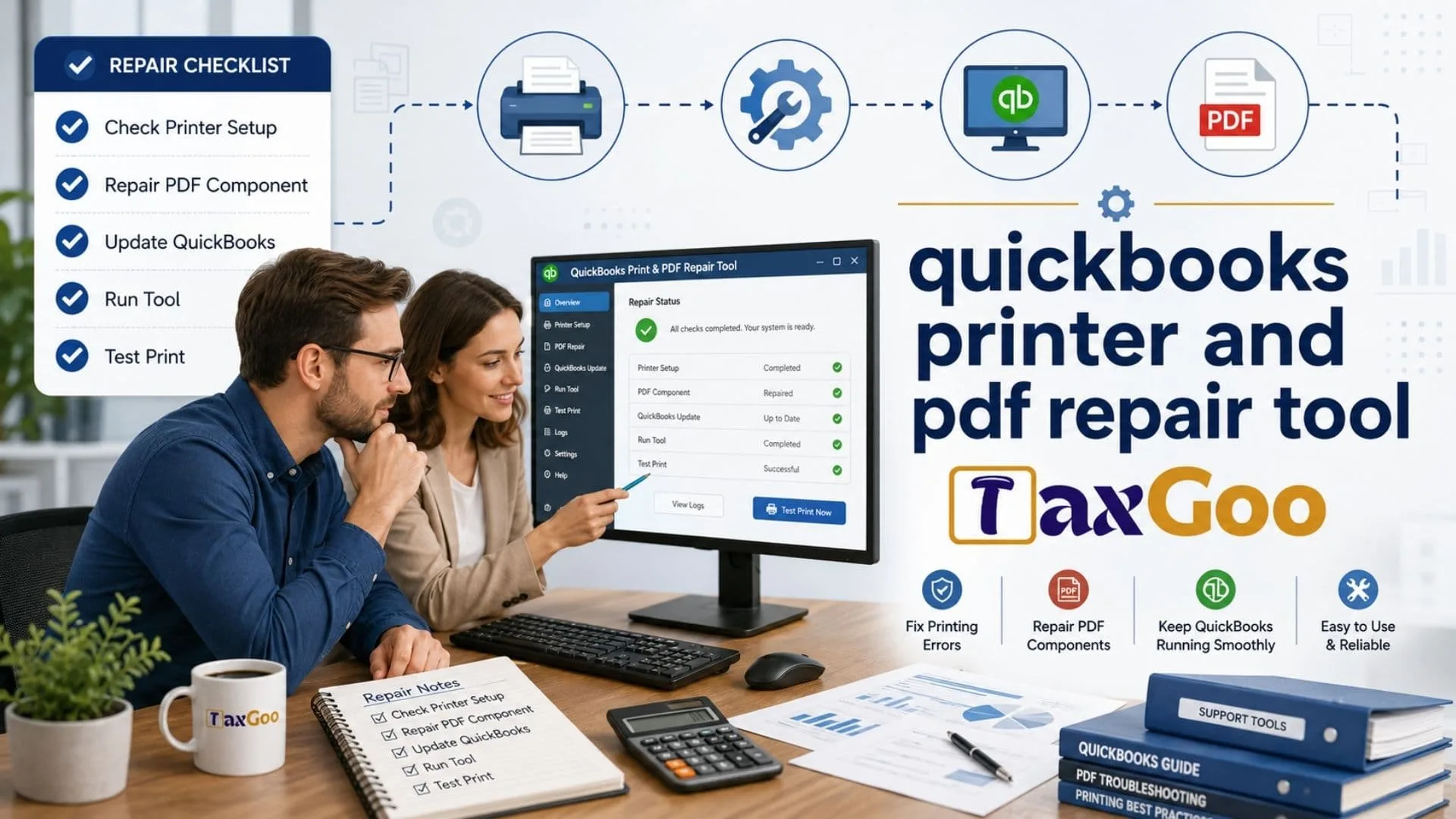
The QuickBooks Printer And PDF Repair Tool is a built-in repair option inside QuickBooks Tool Hub that helps fix common QuickBooks Desktop printing errors, PDF problems, invoice printing issues, email form errors, save as PDF problems, missing PDF component messages, printer setup issues, and problems with reports, checks, purchase orders, statements, or forms that will not print correctly. If QuickBooks cannot complete the current action due to a missing component, freezes when saving a PDF, fails to create a PDF file, gives a printer not activated error, refuses to email invoices, prints blank pages, or simply acts like your printer has joined a secret rebellion, this tool is often one of the first fixes to try. It is designed to repair the connection between QuickBooks Desktop, your printer settings, PDF components, and Windows print services, which makes it useful for small businesses, bookkeepers, accountants, office admins, and anyone who depends on clean invoices and accurate records. While it does not solve every issue, the QuickBooks Printer And PDF Repair Tool can save time by handling several common repair steps in one place, especially when the problem is tied to PDF creation, print commands, email forms, or damaged print-related components in QuickBooks Desktop.
What Is The QuickBooks Printer And PDF Repair Tool?
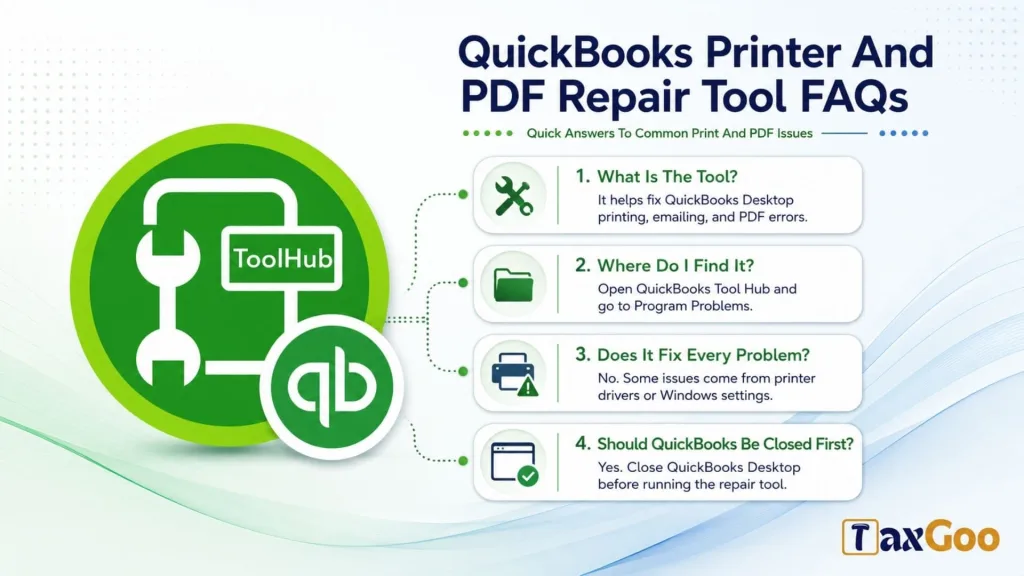
The QuickBooks Printer And PDF Repair Tool is a troubleshooting utility available through QuickBooks Tool Hub. It helps repair issues that stop QuickBooks Desktop from printing, emailing, or saving forms as PDF files.
In everyday terms, it is like a small mechanic for your QuickBooks print system. It checks and repairs parts of the setup that QuickBooks depends on when it sends invoices, reports, checks, statements, or other forms to a printer or PDF file.
Many users search for this tool when QuickBooks suddenly stops printing after a Windows update, a printer driver change, a QuickBooks update, or a PDF component error. Instead of manually digging through every setting, the repair tool gives you a faster starting point.
Why QuickBooks Printing And PDF Errors Happen
QuickBooks Desktop does not work alone when it prints or creates a PDF. It depends on Windows, printer drivers, PDF components, permissions, temporary folders, and internal QuickBooks files. If one part breaks, the whole process can fail.
For example, QuickBooks may be working fine, but the printer driver may be outdated. In another case, Windows may block access to a temporary folder. Sometimes QuickBooks cannot find or use the PDF component it needs to create a file. Other times, the printer spooler may stop responding.
That is why these problems can feel confusing. You may click Print in QuickBooks, but the real issue may sit somewhere else on the computer.
The repair tool helps because it focuses on the common bridge between QuickBooks, PDF creation, and printing. It does not require you to know every technical detail before you begin.
Common Problems The Tool Can Help Fix
The QuickBooks Printer And PDF Repair Tool is most useful when QuickBooks Desktop has trouble with print and PDF actions. That includes printing invoices, saving reports as PDFs, emailing forms, printing checks, or creating PDF copies of documents.
You may want to run the tool if you see messages like “QuickBooks could not create the necessary PDF files,” “missing PDF component,” “printer not activated,” or “QuickBooks cannot complete the current action.” It may also help when QuickBooks freezes while saving a PDF or when the Save as PDF option does nothing.
Some users also try it when reports print incorrectly, forms do not fit on the page, or invoice templates fail to print as expected. However, layout problems are not always repair problems. Sometimes you may also need to check page setup, printer preferences, margins, scaling, or template design.
Where To Find The Tool
The repair tool is found inside QuickBooks Tool Hub, not usually as a standalone app from the QuickBooks company file screen.
After installing QuickBooks Tool Hub, open it and choose Program Problems. From there, select the QuickBooks Print & PDF Repair Tool or similarly named option. The tool usually runs quickly, then you can return to QuickBooks Desktop and test printing, emailing, or saving as a PDF again.
Before you run it, close QuickBooks Desktop. This gives the repair process a cleaner chance to work because it can make changes without QuickBooks actively using the files or components.
How To Use The QuickBooks Printer And PDF Repair Tool
Start by closing QuickBooks Desktop. Then open QuickBooks Tool Hub from your Windows desktop or Start menu. If you do not see it, search for QuickBooks Tool Hub in Windows.
Once the Tool Hub is open, go to Program Problems. Choose the Print and PDF repair option. Let the tool run until it finishes. After that, reopen QuickBooks Desktop and test the action that failed before.
Try the exact same task again. If the issue happened when saving an invoice as a PDF, test that. If the problem happened when emailing an estimate, try that. If it happened while printing a report, print the same report again.
This helps you know whether the repair actually fixed the issue or if the problem needs a different solution.
What To Do Before Running The Tool
A few quick checks can make the repair process smoother.
First, make sure QuickBooks Desktop is closed. Next, check that your printer is turned on, connected, and working with other programs. Try printing from a simple app like Notepad or a PDF reader. If the printer will not print from anything, the problem is probably not only QuickBooks.
Also check your Windows updates and printer driver. A bad or outdated driver can create printing problems in many programs, not just QuickBooks.
If you are using QuickBooks in a business setting, it is also wise to make sure no one else is working on a task that depends on the same printer or company file. You do not want to interrupt payroll, billing, or reporting during a repair attempt.
When The Tool Works Best
The tool works best for common QuickBooks Desktop print and PDF component problems. It is especially helpful when the error starts suddenly and affects QuickBooks actions like saving as PDF, emailing forms, or printing from inside the program.
It can also be useful after an update. Sometimes Windows, QuickBooks, or printer software updates can change system settings. A repair tool can reset or repair the parts QuickBooks needs.
It is also a strong first step because it is simple. You do not need to edit system files, change advanced Windows settings, or reinstall QuickBooks right away. For many users, that makes it a safe and practical place to begin.
When The Tool May Not Be Enough
The QuickBooks Printer And PDF Repair Tool is helpful, but it is not magic. Some issues need extra steps.
If your printer does not work in any program, you may need to fix the printer driver, connection, print queue, paper settings, or network printer setup. If only one QuickBooks template prints badly, the template layout may need editing. If only one company file has the problem, the file may need deeper troubleshooting.
The tool may also fail to solve problems caused by Windows permission settings, damaged QuickBooks installation files, missing updates, blocked temp folders, or third-party PDF software conflicts.
If the same error keeps returning after you run the tool, do not keep clicking repair again and again all day. Run it once, test carefully, then move to the next logical step.
QuickBooks PDF Problems Explained In Plain English
PDF problems in QuickBooks usually happen when the program cannot create or save a document in PDF format. This can affect invoices, reports, estimates, purchase orders, statements, or other forms.
A PDF may look simple, but QuickBooks needs the right components to build that file. If something is missing, blocked, outdated, or damaged, QuickBooks may show an error or freeze during the process.
This is why a PDF problem can also affect email. When QuickBooks emails an invoice, it may first need to create a PDF attachment. If PDF creation fails, emailing the invoice can fail too.
So, if you cannot email invoices from QuickBooks Desktop, do not only check email settings. The real issue may be the PDF process behind the scenes.
QuickBooks Printer Problems Explained In Plain English
Printing problems usually involve the connection between QuickBooks, Windows, and your printer. QuickBooks sends the print request, Windows processes it, and the printer completes the job. If that chain breaks, your document may not print.
The problem can come from a printer driver, the print spooler, a disconnected printer, a wrong default printer, a damaged QuickBooks print file, or settings inside the form itself.
Sometimes the printer works outside QuickBooks, but not inside QuickBooks. That usually means QuickBooks has a specific issue with print settings, print files, PDF components, or the way it communicates with Windows.
The repair tool helps by targeting the QuickBooks side of that chain.
How To Test After Running The Tool
After running the repair tool, open QuickBooks Desktop and test one task at a time.
Start with the task that caused the problem. If you could not save an invoice as a PDF, try saving that same invoice again. If you could not print a report, print the same report. If you could not email a statement, test that statement.
Then test a second document. This helps you find out whether the problem was tied to one form or the whole program.
If one form still fails but others work, the issue may be with that form, report, or template. If everything still fails, the problem may sit deeper in Windows, QuickBooks installation files, or printer setup.
Extra Fixes If The Repair Tool Does Not Work
If the tool does not solve the problem, restart your computer. This sounds basic, but it can clear stuck print jobs and restart background services.
Next, check your default printer in Windows. Make sure the correct printer is selected and available. Remove stuck jobs from the print queue. Then try printing from another program.
You can also update QuickBooks Desktop. A missing update can cause strange behavior, especially after a Windows change.
If PDF problems continue, check folder permissions and temporary folder access. QuickBooks needs permission to create and store temporary files while building PDFs.
If only one printer causes trouble, try another printer or print to Microsoft Print to PDF as a test. If that works, your physical printer driver may be the main issue.
Why Businesses Should Fix These Issues Quickly
Printing and PDF problems can slow down basic business tasks. Invoices need to be sent. Reports need to be shared. Checks may need to be printed. Estimates, sales receipts, purchase orders, and statements often need clean copies.
When QuickBooks cannot print or create PDFs, the problem can interrupt cash flow, customer communication, vendor work, payroll support, and recordkeeping.
That is why the QuickBooks Printer And PDF Repair Tool is worth knowing about. Even if you only need it once, it can save a busy office from losing time over a small but stubborn technical issue.
How To Avoid Future Problems
Keep QuickBooks Desktop updated. Updates can include fixes that help the program work better with Windows and related components.
Keep printer drivers updated too. If you replace a printer, remove old printer drivers that are no longer needed. Too many old or broken printer entries can confuse print settings.
Use a stable default printer. If Windows keeps switching the default printer, QuickBooks may send jobs to the wrong place.
Also, avoid downloading repair tools from random websites. Use trusted sources and be careful with files that claim to fix QuickBooks errors. Fake tools and unsafe downloads can create bigger problems than the one you started with.