Setting Up A Vehicle Loan In QuickBooks Desktop is an important accounting task for businesses that purchase cars, trucks, vans, or other commercial vehicles through financing. Whether you have recently purchased a company vehicle or are managing an existing auto loan, recording the transaction correctly helps maintain accurate financial statements and provides a clear picture of your outstanding debt. QuickBooks Desktop offers several accounting features that allow businesses to create vehicle asset accounts, establish loan liability accounts, record down payments, track monthly installments, and separate principal payments from interest expenses. Understanding how to set up an auto loan in QuickBooks Desktop is especially useful for small business owners, accountants, bookkeepers, and financial professionals who want to maintain organized bookkeeping records. Instead of recording the entire monthly installment as an expense, you need to understand how each payment affects your loan balance and business expenses. A properly configured vehicle financing account also makes bank reconciliation, loan balance verification, depreciation tracking, and year-end financial reporting easier. In this guide, we will explain the complete process of setting up a vehicle loan in QuickBooks Desktop, including account creation, initial loan recording, monthly payment entries, and common bookkeeping mistakes to avoid.
1. Understand How Vehicle Loans Work In QuickBooks Desktop
Before entering any transactions, it is important to understand how vehicle financing appears in your accounting records.
A financed business vehicle generally involves two major accounting components:
- Fixed Asset: Represents the vehicle purchased for business use.
- Loan Liability: Represents the outstanding amount owed to the financing company or bank.
You may also need an expense account to record interest charges associated with the loan.
For example, if your business purchases a vehicle worth $35,000 and finances $30,000, the accounting records should reflect the vehicle’s acquisition cost, the amount financed, and the down payment.
The vehicle is recorded as an asset, while the financed amount is recorded as a liability. Interest is recorded separately as an expense when applicable.
2. Create A Vehicle Asset Account
The first step is creating an account to track the business vehicle.
Follow these instructions:
- Open QuickBooks Desktop.
- Navigate to the Lists menu.
- Select Chart of Accounts.
- Click the Account dropdown and select New.
- Choose Fixed Asset as the account type.
- Enter a suitable account name, such as Company Vehicle or Business Vehicle.
- Add an optional description containing the vehicle details.
- Click Save & Close.
You can also create separate subaccounts for different vehicles if your business owns multiple cars or commercial vehicles.
This makes it easier to identify individual assets and maintain organized depreciation records.
3. Create A Vehicle Loan Liability Account
Next, create an account to track the outstanding vehicle financing balance.
- Open the Lists menu.
- Select Chart of Accounts.
- Click Account, followed by New.
- Choose Other Account Types.
- Select Long Term Liability if the repayment period extends beyond one year.
- Enter an account name such as Vehicle Loan Payable.
- Add the lender’s details in the description if required.
- Click Save & Close.
If the loan has a portion payable within the next 12 months, your accountant may recommend separately classifying that portion as a current liability.
Proper liability classification helps maintain accurate balance sheet information.
4. Create An Interest Expense Account
Vehicle loan installments usually contain principal and interest components. These amounts must be recorded separately.
To create an interest expense account:
- Navigate to Lists.
- Open Chart of Accounts.
- Select Account and click New.
- Choose Expense.
- Enter Interest Expense or Vehicle Loan Interest as the account name.
- Click Save & Close.
This account allows you to monitor financing costs independently from the outstanding loan balance.
You can also maintain separate accounts for loan processing fees and other financing charges when appropriate.
5. Set Up The Bank Or Financing Company As A Vendor
Adding the lender as a vendor makes it easier to identify payments and maintain transaction records.
Follow these steps:
- Open the Vendors menu.
- Select Vendor Center.
- Click New Vendor.
- Enter the bank or financing company’s name.
- Add its contact information and other available details.
- Click OK.
Use the same vendor whenever you record payments to that lender.
6. Record The Initial Vehicle Loan
Once your accounts are ready, you need to record the original vehicle purchase and financing arrangement.
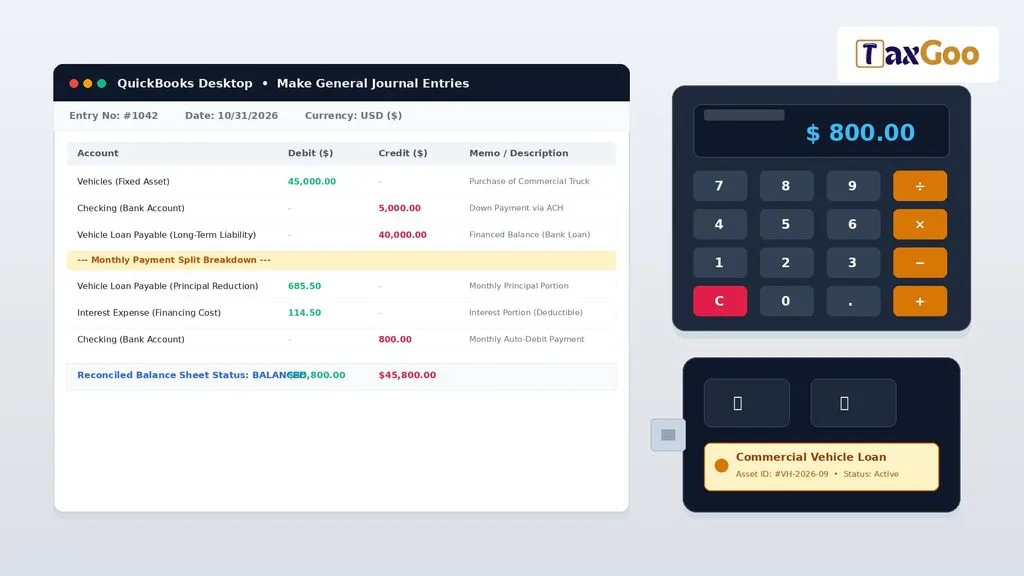
For a vehicle purchased directly through financing, you can use a journal entry to record the asset and corresponding loan liability.
For example, assume your business purchases a vehicle for $35,000, pays $5,000 upfront, and finances the remaining $30,000.
The accounting entry would generally look like this:
| Account | Debit | Credit |
|---|---|---|
| Company Vehicle (Fixed Asset) | $35,000 | |
| Vehicle Loan Payable | $30,000 | |
| Bank Account | $5,000 |
To enter the transaction:
- Navigate to the Company menu.
- Select Make General Journal Entries.
- Enter the appropriate transaction date.
- Debit the vehicle asset account with the acquisition cost.
- Credit the loan liability account with the financed amount.
- Credit the bank account with the down payment.
- Verify that total debits equal total credits.
- Click Save & Close.
Use the actual purchase documents and financing agreement to determine the correct amounts. If the vehicle purchase has already been recorded, avoid entering the asset a second time.
7. Record Monthly Vehicle Loan Payments
Recording monthly installments correctly is essential for keeping the loan balance accurate.
For example, suppose your monthly installment is $570, consisting of:
- Principal: $450
- Interest: $120
Follow these steps:
- Open the Banking menu.
- Select Write Checks.
- Choose the bank account used for the payment.
- Enter the payment date.
- Select the financing company under Pay to the Order of.
- Open the Expenses tab.
- On the first line, select Vehicle Loan Payable.
- Enter $450 as the principal payment.
- On the second line, select Vehicle Loan Interest.
- Enter $120 as the interest expense.
- Confirm the total payment is $570.
- Click Save & Close.
QuickBooks will reduce the outstanding loan liability by the principal amount and record the interest as an expense.
Always use the principal and interest breakdown from the lender’s payment statement rather than assuming that every installment has the same allocation.
8. Review And Reconcile Your Vehicle Loan Account
After recording payments, regularly review the loan liability account to confirm that its balance matches the lender’s outstanding principal balance.
You can use the following reports:
- Balance Sheet: Reviews the outstanding vehicle loan liability.
- Profit and Loss: Shows recorded interest expenses.
- General Ledger: Displays individual loan-related transactions.
- Transaction Detail Reports: Help investigate specific payment entries.
Reconcile the bank account regularly and compare your accounting records with the lender’s statements.
If you discover differences, investigate missing payments, incorrect principal allocations, duplicate entries, or unrecorded fees.
9. Common Mistakes To Avoid
When setting up a vehicle loan in QuickBooks Desktop, avoid these common bookkeeping mistakes:
Recording The Entire Installment As An Expense: Only the interest portion is generally recorded as an expense. Principal payments reduce the liability.
Using The Wrong Account Type: A long-term vehicle loan should generally be classified as a long-term liability, with the appropriate current portion considered separately.
Forgetting The Vehicle Asset: Recording the loan without properly recording the acquired vehicle can create inaccurate financial statements.
Entering Duplicate Transactions: Avoid recording the same loan amount or monthly installment twice.
Ignoring Interest And Additional Fees: Record financing interest and applicable charges in their appropriate accounts.
Conclusion
Setting up a vehicle loan in QuickBooks Desktop becomes much easier when you understand the relationship between fixed assets, loan liabilities, and interest expenses. By creating the appropriate accounts, recording the initial vehicle purchase correctly, and separating principal from interest during monthly payments, you can maintain reliable accounting records and monitor your outstanding financing balance. Regular account reviews, bank reconciliation, and accurate transaction entries will help prevent bookkeeping errors and simplify financial reporting. Whether you manage one business vehicle or an entire commercial fleet, following these steps provides a structured approach to vehicle loan management in QuickBooks Desktop.
Frequently Asked Questions (FAQs)
1. How Do I Set Up A Vehicle Loan In QuickBooks Desktop?
Create a fixed asset account, a loan liability account, and an interest expense account. Then record the vehicle purchase and financing arrangement.
2. Is A Vehicle Loan An Asset Or A Liability?
The vehicle is a fixed asset, while the outstanding financing balance is a liability.
3. How Do I Record Monthly Car Payments In QuickBooks?
Use the Write Checks feature and separate the principal payment from the interest expense in the Expenses tab.
4. Should I Record The Entire Car Payment As An Expense?
No. The principal reduces the loan liability, while the interest portion is generally recorded as an expense.
5. Can I Track Multiple Vehicle Loans In QuickBooks Desktop?
Yes. You can create separate liability accounts for individual vehicle loans to monitor each outstanding balance independently.