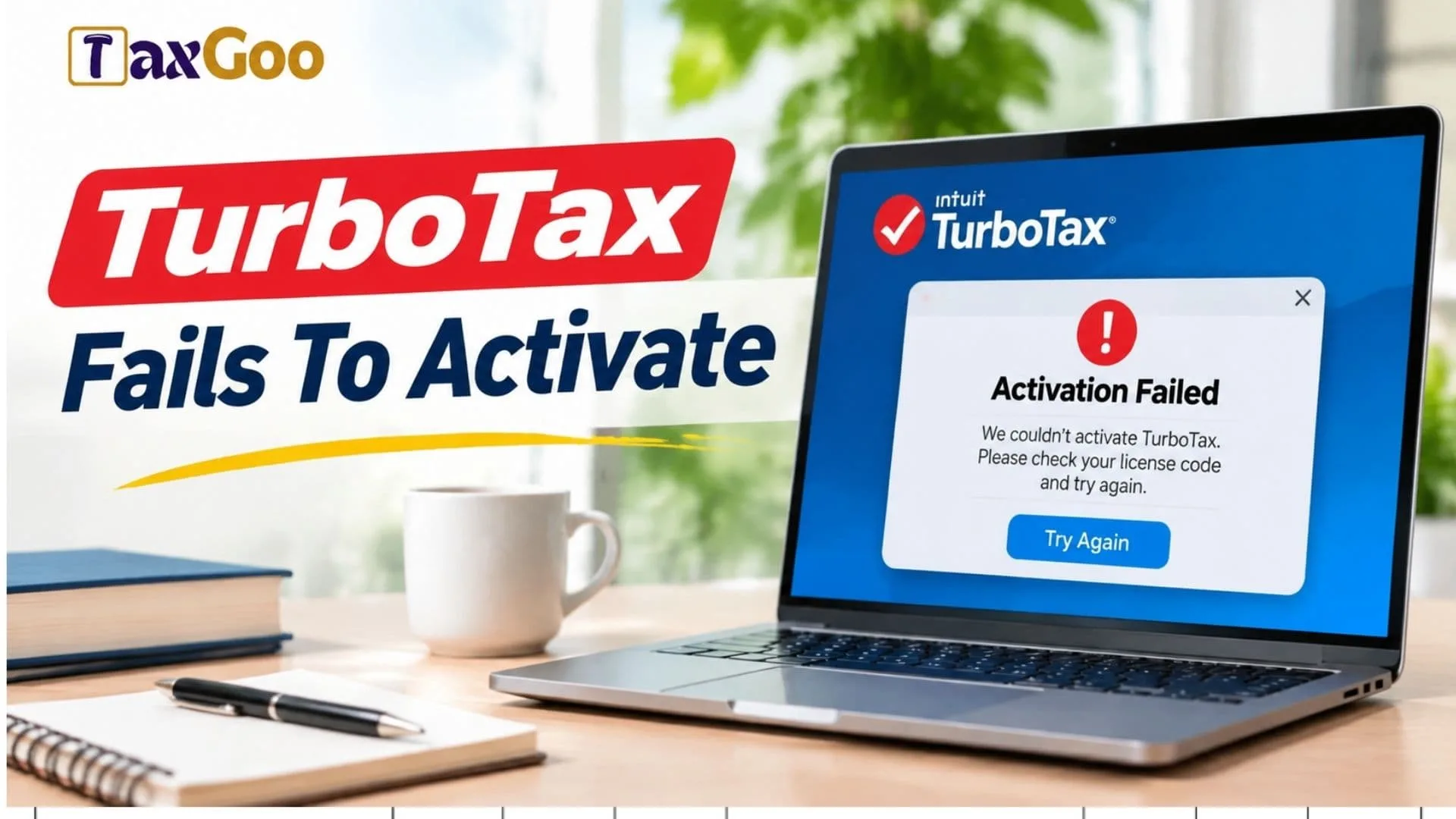
Trying to activate TurboTax but getting stuck on an error message can quickly turn tax preparation into a frustrating experience. If TurboTax fails to activate, you are not necessarily dealing with a damaged license or a problem with your purchase. Activation issues can happen for several reasons, including an incorrect product key, an Intuit account mismatch, an unstable internet connection, outdated software, security restrictions, or problems during installation. Whether you are using TurboTax Desktop on Windows or Mac, or trying to activate a purchased TurboTax Online product, identifying the actual cause is the first step toward resolving the issue. Some users encounter an invalid activation code message, while others see a blank activation screen, repeated sign-in requests, or software that refuses to recognize their purchase. The good news is that many TurboTax activation problems can be resolved with a few straightforward troubleshooting steps. In this guide, we will explore why TurboTax activation fails, explain how to fix common license and account errors, and show you what to check before contacting Intuit customer support.
Why Does TurboTax Fail To Activate?
TurboTax requires successful product activation before you can access the features included with your purchased software. Several technical and account-related problems can interrupt this process.
Here are some common reasons TurboTax won’t activate:
- Incorrect License Code: Entering an incorrect character or using the wrong product code can prevent activation.
- Wrong Intuit Account: Your purchase or previously activated license may be associated with another account.
- Internet Connection Problems: A weak or unstable connection can interrupt communication with Intuit’s activation servers.
- Product Version Mismatch: TurboTax Online and Desktop activation codes are not interchangeable.
- Outdated Software: An older installation or incomplete update may interfere with activation.
- Security Restrictions: Antivirus software, firewalls, or restricted computer permissions may block necessary connections.
- Installation Problems: Corrupted installation files can prevent TurboTax from loading the activation screen correctly.
Identifying which issue applies to your situation can save time and prevent unnecessary software reinstallation.
How To Fix TurboTax Activation Problems
Before trying advanced troubleshooting methods, close TurboTax and restart your computer. Then follow these steps.
1. Check Your TurboTax License Code
Start by checking the activation or license code provided with your purchase.
If you purchased TurboTax from an authorized retailer, look for the code on your receipt, product card, or confirmation email. If you purchased directly from Intuit, check your Intuit account for the relevant product information.
Carefully review every character before entering the code. Letters and numbers can look similar, especially when entering a long license number manually.
Also make sure that:
- Your code belongs to the correct tax year.
- You purchased the correct TurboTax edition.
- You are activating the Desktop or Online version that matches your purchase.
If the code still does not work, verify the purchase details with the retailer or Intuit.
2. Sign In With The Correct Intuit Account
One common reason for TurboTax activation failure is using an account different from the one associated with the original purchase.
Open TurboTax and check which Intuit account you are using. If you have multiple email addresses, try identifying the account used when purchasing or initially activating the product.
For an already activated TurboTax Online product, entering another activation code into the same account may generate an error because only one code per tax year can be used on that account.
If you cannot access your original account, use Intuit’s official account recovery process rather than creating multiple accounts unnecessarily.
3. Check Your Internet Connection
TurboTax Desktop requires an internet connection for product activation and software updates. Even if the program installs successfully, activation may fail when your computer cannot communicate properly with Intuit.
Try these steps:
- Check that your internet connection is working.
- Restart your router if necessary.
- Disconnect from any VPN temporarily.
- Check whether your firewall is blocking TurboTax.
- Restart TurboTax and attempt activation again.
If you use a corporate or restricted network, contact your network administrator before changing security settings.
4. Run TurboTax As Administrator
Windows users may experience activation or installation problems because of restricted user permissions.
To check this:
- Close TurboTax completely.
- Find the TurboTax shortcut on your desktop.
- Right-click the application icon.
- Select Run as administrator.
- Sign in to your Intuit account.
- Try activating the software again.
Administrator permissions can help TurboTax access the files and system resources required to complete activation.
5. Update Or Reinstall TurboTax
An incomplete download or damaged installation file may prevent the activation process from working correctly.
If the software continues to fail:
- Close TurboTax.
- Check whether an update is available.
- Download the appropriate installer from the official TurboTax website.
- Follow the installation instructions for your operating system.
- Restart your computer.
- Open TurboTax and try activating it again.
Before uninstalling the program, protect any existing tax return files by making a backup. Reinstalling software should not be your first response if you have important unsaved tax information.
6. Check Your Computer’s System Requirements
Sometimes TurboTax activation problems are connected to an incompatible operating system or outdated computer configuration.
Check the official system requirements for your particular tax year and product edition.
For example, TurboTax Desktop for tax year 2025 requires Windows 11 (64-bit) on Windows computers, while the supported Mac operating system depends on the product year.
Also check available storage, administrator permissions, and internet connectivity.
Using an unsupported operating system can cause installation and activation difficulties even when your license code is valid.

What If TurboTax Shows A Blank Activation Screen?
A blank activation screen can be especially confusing because you may not see an error message or a place to enter your license code.
Try the following:
- Close and reopen TurboTax.
- Restart your computer.
- Check your internet connection.
- Install available operating system updates.
- Run TurboTax with administrator permissions on Windows.
- Confirm that your screen resolution meets the software requirements.
- Check whether security software is interfering with the application.
If the activation window remains blank, contact Intuit support. Provide your product edition, tax year, operating system, and a screenshot of the problem.
When Should You Contact TurboTax Support?
If you have checked your license code, account details, internet connection, and installation but activation still fails, contacting Intuit support is the next sensible step.
Prepare the following information before contacting the support team:
- TurboTax product edition and tax year.
- Your operating system and version.
- The exact activation error message or code.
- Purchase confirmation or receipt.
- Troubleshooting steps you have already attempted.
Never share your full license code, account password, or sensitive financial information in a public support forum.
Official support can help determine whether the problem relates to your account, license, software installation, or another technical issue.
Final Thoughts
When TurboTax fails to activate, the problem is not always as complicated as it first appears. Incorrect license information, account mismatches, connectivity issues, outdated installations, and computer permissions are all possible causes.
Start with the simplest checks, including your license code and Intuit account. Then move on to internet troubleshooting, administrator permissions, software updates, and system compatibility.
If none of these solutions works, contact Intuit’s official support team for assistance. Taking a systematic approach can help you resolve TurboTax activation errors and get back to preparing your taxes without unnecessary delays.