If you manage a nonprofit organization, keeping donor information accurate in QuickBooks Online is essential for maintaining reliable financial records and communicating with supporters. Learning how to correct donor’s name in QuickBooks Online can help you fix spelling mistakes, update a donor’s legal name, correct an outdated organization name, or resolve duplicate records. QuickBooks Online often manages donors through its customer records, so the process usually involves opening the donor’s profile, editing the relevant name fields, and saving the changes. However, correcting a name on a donor profile is not always the same as correcting a name on an existing donation receipt or sales transaction. Understanding this difference can help you maintain accurate donor records, avoid confusion when reviewing reports, and ensure that donation documentation reflects the correct information. Whether you are correcting one character or updating an organization’s full name, the steps below will help you handle the change carefully.
Why Correct Donor Information Matters
Accurate donor information helps nonprofit organizations maintain organized financial records and communicate with supporters more effectively. A misspelled name can appear on invoices, donation acknowledgments, customer records, or other documents generated through QuickBooks.
Correct records also make it easier to identify donors, review contribution histories, and reduce confusion caused by duplicate profiles. If your organization uses QuickBooks to prepare donation acknowledgments or maintain supporting documentation, accurate names are particularly important.
Before making a change, determine whether you need to update the donor’s profile, correct an existing transaction, or change the terminology QuickBooks uses for customers and donors.
Steps To Correct A Donor’s Name In QuickBooks Online
Step 1: Open The Donor List
Sign in to your QuickBooks Online account and locate the donor’s existing record.
- Select All Apps from the navigation menu.
- Open Customer Hub.
- Select Customers & Leads.
- Find the donor whose name needs correction.
Depending on your QuickBooks layout and account settings, the navigation labels may differ. You can also use the in-app search feature to locate the relevant section.
Step 2: Open The Donor’s Profile
Select the donor’s name to open the existing record. Review the available information to make sure you have selected the correct person or organization.
Check the donor’s email address, contact details, and other identifying information before editing anything. This is especially important when your nonprofit has multiple donors with similar names.
Step 3: Select Edit
Open the Customer Details tab and select Edit.
QuickBooks will display the fields available for updating the donor’s information. Review the existing entries and identify the field containing the incorrect name.
Step 4: Correct The Donor’s Name
Update the relevant information in the donor’s profile. Depending on the record, this may include the first name, middle name, last name, company name, or display name.
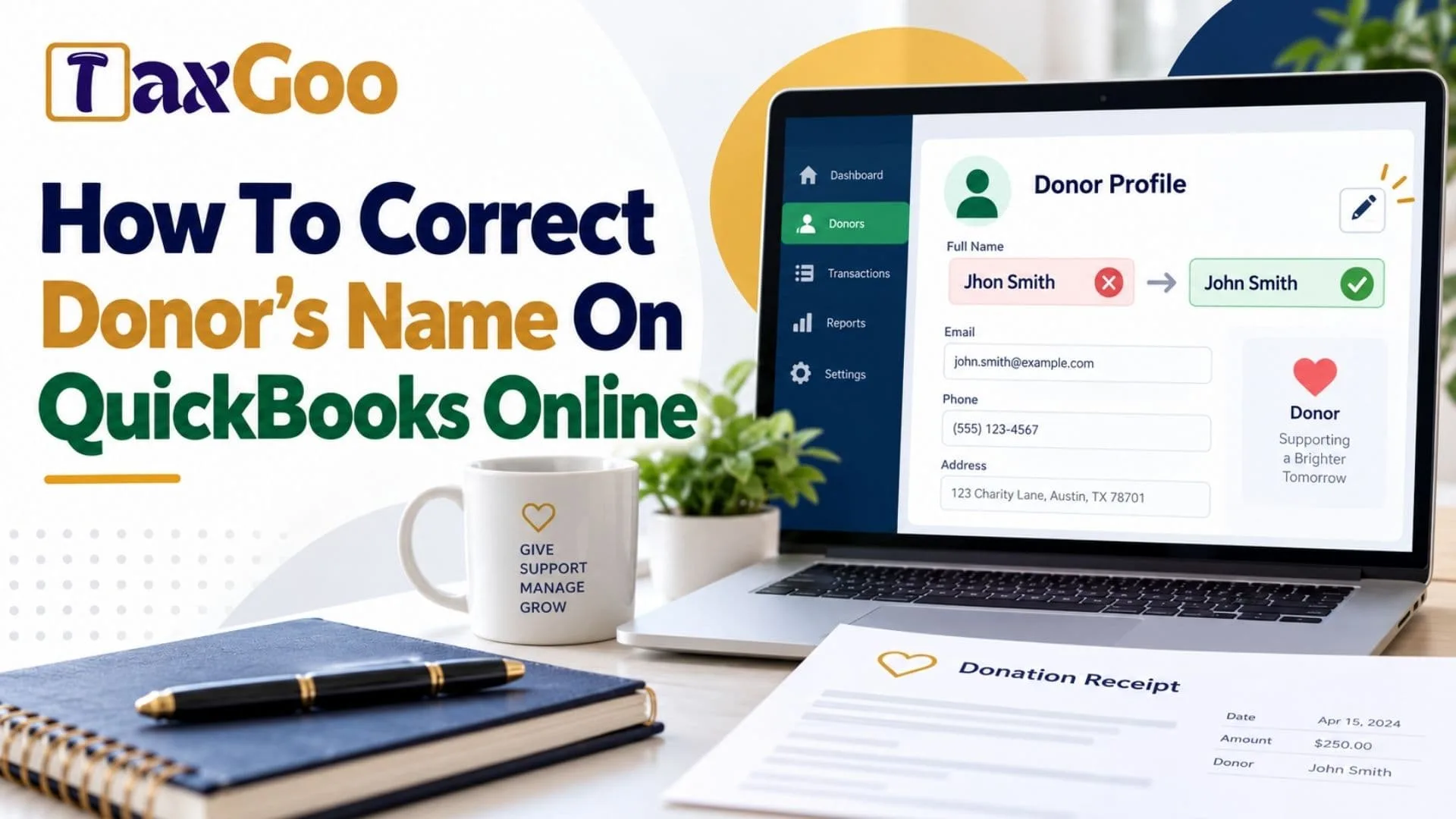
For example, if the donor’s name is recorded as “Jonh Smith” instead of “John Smith,” correct the spelling in the appropriate field.
If the donor is a business or organization, verify that the organization name is accurate. Also check the display name, because it determines how the record is identified in QuickBooks.
Avoid changing unrelated details unless they also need correction.
Step 5: Save The Changes
After reviewing the updated information, select Save.
Reopen the donor’s profile to confirm that the corrected name appears as expected. You should also review relevant records to understand whether the change affects existing documents or transactions.
QuickBooks may update customer information used in previously sent invoices and recurring transactions. Therefore, review important records after making the change, especially if the donor’s name appears on formal donation documentation.
How To Change Customer Terminology To Donors
If your nonprofit’s QuickBooks account displays “Customers” instead of “Donors,” you may be able to change the terminology in your account settings. This is different from correcting an individual donor’s name.
Follow these steps:
- Select Settings and open Account and Settings.
- Select the Advanced tab.
- Find the Other Preferences section and select Edit.
- Open the Customer Label dropdown menu.
- Select Donors.
- Select Save, then Done.
This changes the terminology QuickBooks uses for customers in supported areas of the account. Some labels may not update until you sign out and sign back in.

How To Correct A Donor’s Name On An Existing Donation Receipt
Changing a donor’s profile does not always resolve an incorrect name on a transaction that has already been recorded.
If the name is incorrect on an existing sales receipt, first open the transaction and review its details. Determine whether the issue involves the donor profile or the customer attached to the transaction.
If a sales receipt has already been processed through a credit card payment, QuickBooks may require you to reverse the original receipt and create a replacement with the correct customer information. Follow the appropriate procedure for the transaction rather than changing payment records without reviewing the consequences.
Before reversing or replacing a receipt, verify the payment status and consider whether a refund, duplicate transaction, or other accounting issue could result. If the donation has already been acknowledged or reported, review your organization’s documentation requirements before making changes.
Common Problems When Correcting Donor Names
QuickBooks Says The Name Already Exists
QuickBooks may prevent you from saving a name if another customer, vendor, or employee already uses it. Search the relevant lists to identify the existing record before creating another profile.
If the records represent the same donor, determine which profile should be retained and review the transactions attached to each record before consolidating or changing anything.
The Corrected Name Does Not Appear Everywhere
Some existing documents or transactions may require additional review after you update a donor’s profile. Open the relevant record and check which name is displayed.
If the issue involves a processed sales receipt, use the appropriate transaction-correction procedure rather than assuming a profile edit will correct every historical document.
The Donor Is Listed As A Customer
QuickBooks uses customer records to manage people or organizations that provide money to a business or nonprofit. You can change the customer label to “Donors” in the account settings if that option is available.
Changing this label does not rename individual donor profiles. Edit the specific donor record separately when a person’s or organization’s name is incorrect.
Frequently Asked Questions
Can I Change A Donor’s Name In QuickBooks Online?
Yes. Open the donor’s record, select Edit, correct the relevant name field, and save the changes.
Will Changing A Donor’s Name Update Existing Transactions?
Some customer information changes can update information used in existing transactions. Review important receipts and other records after saving the change.
Can I Change Customers To Donors In QuickBooks Online?
Yes. If the option is available, go to Account and Settings, open Advanced, and change the Customer Label to Donors.
What Should I Do If The Donor Name Already Exists?
Search for the existing record before creating another one. If duplicate records exist, review their transaction histories before deciding how to correct them.
Related Keywords
how to correct donor’s name in QuickBooks Online, edit donor name in QuickBooks, change donor information QuickBooks Online, QuickBooks Online nonprofit donor records, correct customer name QuickBooks, QuickBooks donation receipt correction, change customer display name QuickBooks Online, QuickBooks donor management, fix donor name on sales receipt, QuickBooks nonprofit accounting, update donor profile QuickBooks, QuickBooks duplicate customer name, change customer label to donors, manage nonprofit donations in QuickBooks.