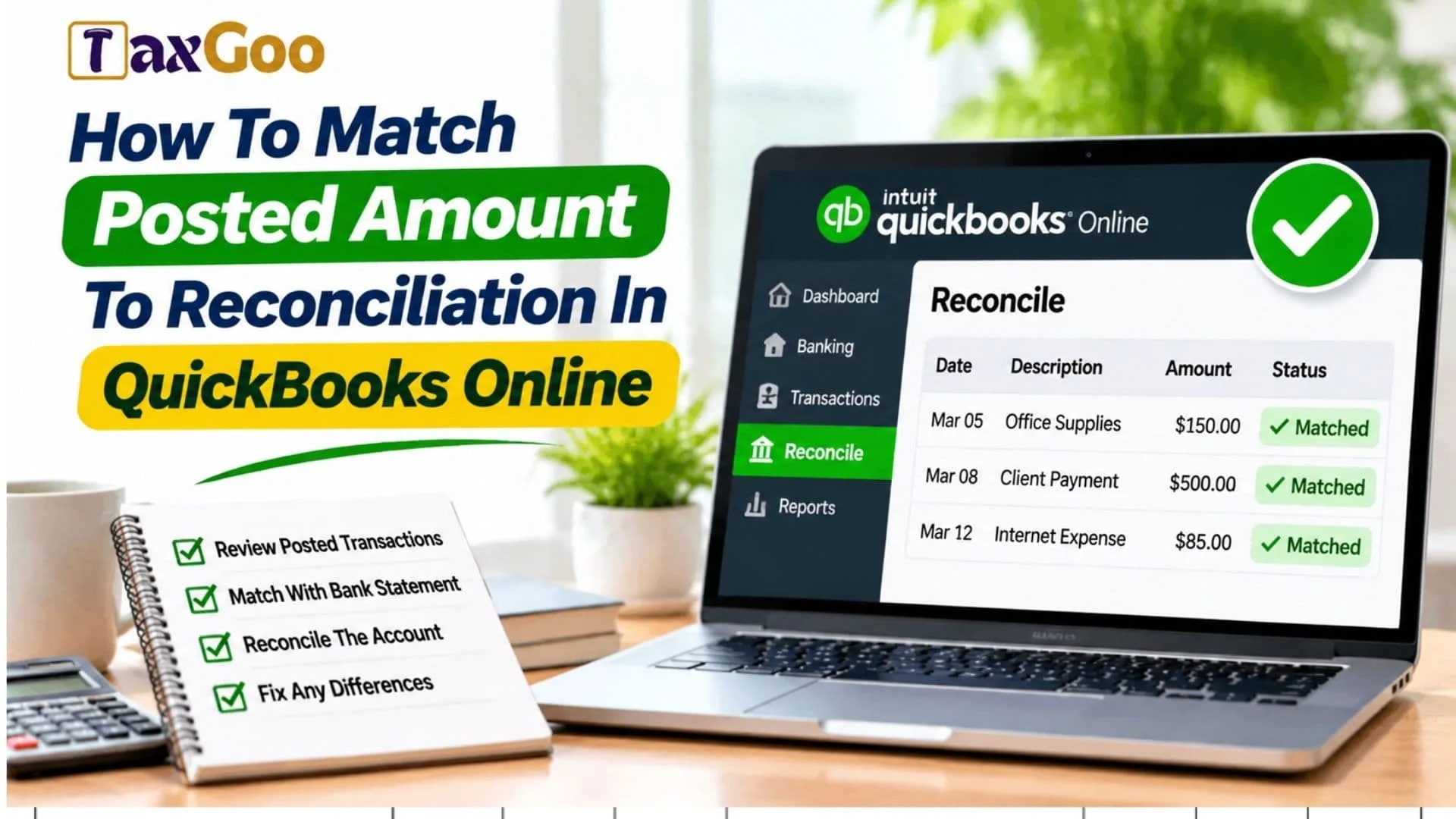
Seeing a posted transaction in QuickBooks Online but struggling to match its amount during bank reconciliation? This is a common bookkeeping challenge, especially when bank feed transactions, manually entered payments, deposits, and previously recorded expenses do not appear to line up correctly. Understanding How To Match Posted Amount To Reconciliation In QuickBooks Online can help you avoid duplicate entries, incorrect balances, and unnecessary changes to your financial records. QuickBooks Online allows users to download transactions from connected bank accounts, match them with existing records, and reconcile those records against monthly bank statements. However, posting a bank transaction and reconciling an account are two different processes. A transaction appearing in the Posted tab does not automatically mean it has been reconciled. You still need to verify the transaction date, amount, payment account, and reconciliation status. Whether you are dealing with a missing transaction, a difference between posted and cleared amounts, or an incorrect bank feed match, knowing the correct steps can make the process much easier. This guide explains how to match posted amounts, review transaction records, fix discrepancies, and complete your QuickBooks Online reconciliation accurately.
What Does A Posted Amount Mean In QuickBooks Online?
In QuickBooks Online, a posted bank transaction is one that has already been reviewed and added to your accounting records, either by matching it with an existing transaction or by categorizing it as a new entry.
When you connect your bank account, downloaded transactions generally appear under the For Review tab. After reviewing them, you can match, categorize, or exclude them.
Once you select Post, the transaction moves to the Posted tab.
However, posting does not necessarily mean the transaction has been reconciled. Reconciliation is a separate process where you compare recorded transactions against your actual bank statement.
Understanding this distinction is important because posting the same transaction twice can create duplicate accounting records.
How To Match A Posted Amount To Reconciliation In QuickBooks Online
Follow these steps to check your posted transactions and make sure they are correctly reflected in your reconciliation.
Step 1: Open The Bank Transactions Page
First, sign in to your QuickBooks Online account.
- Select All Apps from the navigation menu.
- Open Accounting.
- Select Bank Transactions.
- Choose the bank or credit card account you want to review.
- Open the Posted tab.
Here, you can review transactions that have already been matched or categorized.
Find the transaction you want to compare and check its date, amount, and description.
Step 2: Verify The Posted Transaction Details
Before matching a transaction during reconciliation, confirm that its information is correct.
Check the following details:
- Transaction date
- Posted amount
- Bank or credit card account
- Payee or transaction description
- Payment or deposit details
For example, suppose your bank statement shows a payment of $850, but QuickBooks displays a posted transaction of $850. Both amounts appear identical, but you should also verify the transaction date and account before proceeding.
If the details match, you can move to the reconciliation process.
Step 3: Open The Reconciliation Page
Once you have reviewed your posted transactions, open the reconciliation section.
- Select All Apps.
- Go to Accounting.
- Select Reconcile.
- Choose the bank account you want to reconcile.
- Review the beginning balance.
- Enter the ending balance and statement ending date from your bank statement.
- Select Start Reconciling.
QuickBooks will display the transactions recorded for that account and the selected statement period.
Step 4: Match The Posted Amount With The Bank Statement
Compare each transaction displayed in the reconciliation window against the corresponding entry on your bank statement.
Look for matching amounts, dates, and transaction descriptions.
When you identify a transaction that matches your bank statement, select the checkbox next to it.
The selected transaction will contribute to the cleared balance.
Continue checking the transactions until all eligible entries have been reviewed.
Your goal is to reach a reconciliation difference of $0.00. This indicates that the selected transactions and statement balances agree.
Step 5: Review Any Remaining Differences
If the posted amount does not match the reconciliation amount, do not immediately edit or delete the transaction.
First, investigate possible reasons for the difference.
Common causes include:
- Duplicate transactions.
- Incorrect transaction dates.
- Bank service or processing fees.
- Missing deposits or payments.
- Transactions recorded in the wrong bank account.
- Outstanding checks or deposits that have not cleared.
- Incorrect amounts entered manually.
For example, a customer payment may appear in QuickBooks as $500, while the bank statement shows a deposit of $485 because of a $15 processing fee.
You should investigate and record the fee separately rather than changing the original customer payment without understanding the accounting impact.

What If A Posted Transaction Does Not Appear During Reconciliation?
Sometimes a transaction appears in the Posted tab but cannot be found in the reconciliation window.
Here are some things to check:
Check The Bank Account: Make sure the transaction belongs to the same account you are reconciling.
Review The Transaction Date: Transactions dated outside the statement period may not appear in the current reconciliation.
Check The Reconciliation Status: Open the Chart of Accounts and select View Register. Review the transaction’s reconciliation status to determine whether it has already been reconciled.
Look For Duplicate Entries: Search for another transaction with the same amount and date.
Review The Transaction Type: Confirm that the entry is recorded as the correct payment, deposit, transfer, or expense.
If a transaction has already been reconciled, avoid selecting or changing it unnecessarily.
How To Fix An Incorrectly Matched Bank Transaction
If QuickBooks matched a downloaded transaction with the wrong record, you may need to undo the match.
Go to All Apps, select Accounting, and open Bank Transactions. Choose the appropriate account and select the Posted tab.
Find the incorrect transaction and select the blue link in the Added or Matched column. Review the linked record and select Undo if you need to disconnect the incorrect match.
The downloaded transaction will return to the For Review or Pending tab, depending on your QuickBooks interface.
You can then find the correct existing record and match it again.
Important: If the transaction has already been reconciled, consult your accountant before undoing or changing it. Modifying previously reconciled transactions can affect your beginning balance and financial reports.
Final Thoughts
Matching posted amounts to reconciliation in QuickBooks Online becomes easier when you understand the difference between posting a bank transaction and reconciling an account. Always verify transaction amounts, dates, account details, and existing records before making changes.
If something does not match, investigate the discrepancy rather than creating another transaction or editing an existing record immediately. With careful transaction reviews and regular bank reconciliations, you can maintain accurate accounting records and avoid unnecessary bookkeeping errors.