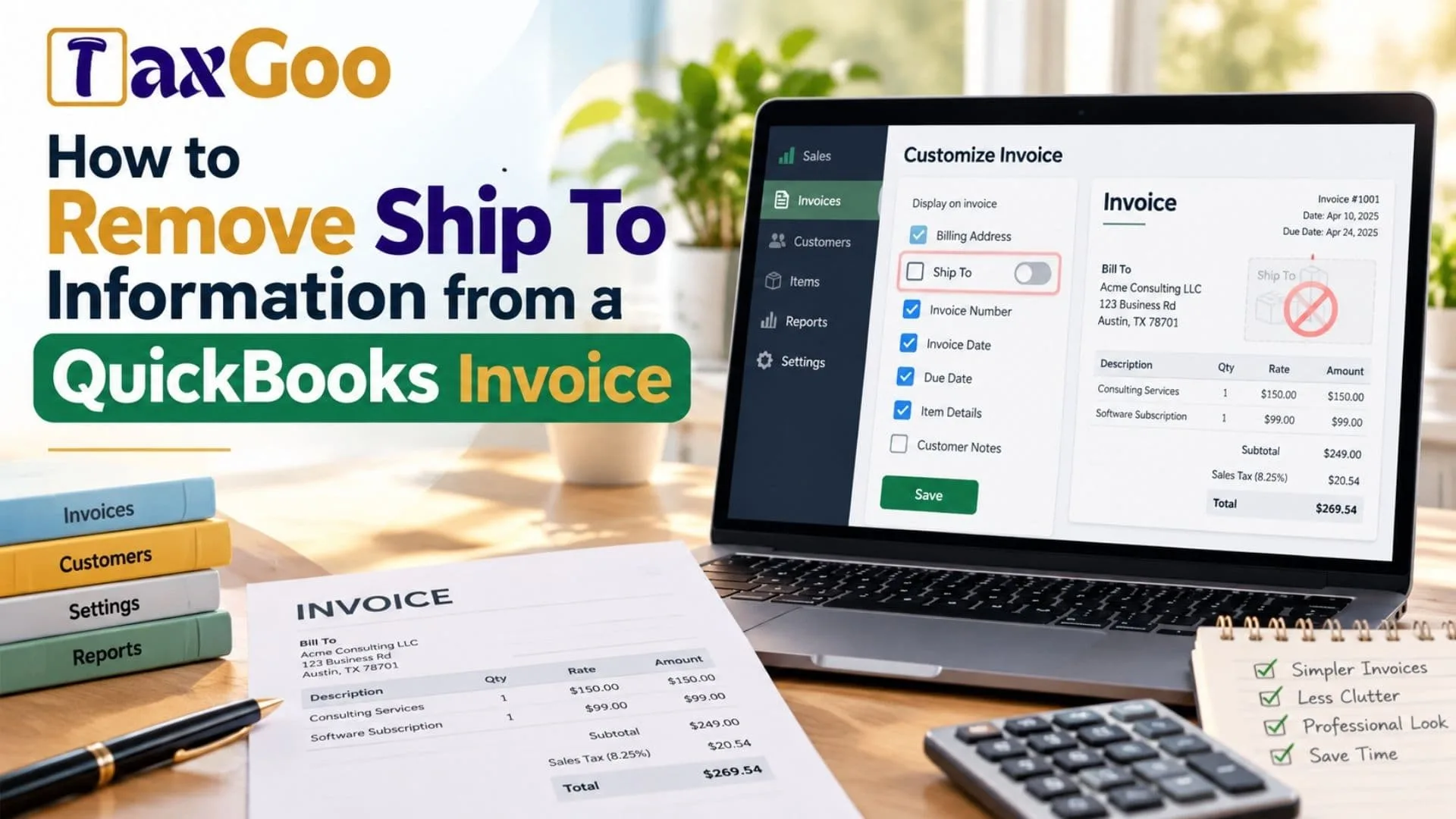
If you’re wondering How to Remove Ship To Information from a QuickBooks Invoice, the good news is that QuickBooks provides several ways to hide unnecessary shipping details from your billing documents. Whether you’re using QuickBooks Online or QuickBooks Desktop, removing the Ship To address can help simplify your invoice template, eliminate confusing shipping information, and create a more professional appearance for customers. This feature is particularly useful for freelancers, consultants, digital businesses, and service providers who don’t ship physical products. In QuickBooks Online, you can usually remove the shipping address directly through invoice customization settings. QuickBooks Desktop users can adjust their invoice templates to control which fields appear on printed or emailed documents. Understanding how to customize a QuickBooks invoice, remove shipping address fields, and manage invoice settings can save time while ensuring your customers receive clear, accurate billing information.
Why Does QuickBooks Show A Ship To Address?
QuickBooks includes shipping information to help businesses track where purchased products should be delivered.
For companies selling physical goods, this information can be important for order fulfillment and sales tax calculations.
However, businesses providing consulting, online services, subscriptions, or digital products may not need shipping addresses on their invoices.
Depending on your settings and selected template, QuickBooks may automatically display a Ship To field even when shipping information isn’t relevant.
Fortunately, you can usually hide this information without deleting the customer’s billing address.
How To Remove Ship To From QuickBooks Online Invoices
The easiest way to remove shipping information in QuickBooks Online is through the invoice customization menu.
Follow these steps:
- Sign In To QuickBooks Online: Open your company account and navigate to the invoice section.
- Open An Invoice: Select an existing invoice or create a new one.
- Find Manage: Locate the Manage option, usually represented by a gear icon.
- Select Customization: Expand the Customization settings to view available invoice fields.
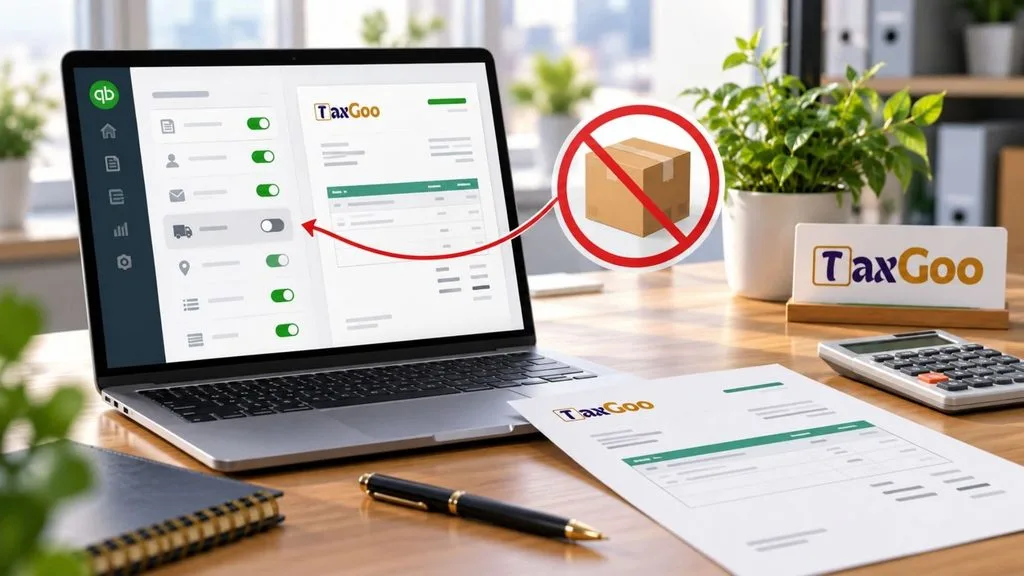
- Disable Ship To: Find the Ship To option and turn off its toggle.
- Save Your Changes: Save the invoice using the available save option.
- Check The Invoice Preview: Select Print or Download to confirm the shipping address no longer appears.
This method hides the Ship To field from the customer-facing invoice without requiring you to delete the customer’s stored information.
The exact interface may vary depending on your QuickBooks Online version and invoice template.
How To Turn Off Shipping In QuickBooks Settings
If your business doesn’t use shipping features, you can also review your company-wide sales settings.
To access these options, open Settings > Account and Settings > Sales.
Locate the Sales form content section and select Edit. Find the Shipping option, turn it off if appropriate, and save your changes.
This setting controls shipping-related fields within sales forms, making it useful for businesses that don’t track deliveries.
However, disabling shipping globally may affect shipping workflows or information used for sales tax calculations.
If you sell physical products or rely on destination-based tax calculations, consider hiding the invoice field instead of disabling shipping entirely.
How To Remove Ship To In QuickBooks Desktop
QuickBooks Desktop offers additional control over invoice templates through its customization tools.
For QuickBooks Desktop on Windows, open an invoice and select Formatting > Customize Data Layout.
If your existing template is locked, create a copy before making changes.
In the customization window, locate the Ship To field under the relevant template section.
You can generally control whether a field appears on the screen or printed invoice using the Screen and Print checkboxes.
Clear the Print checkbox to hide shipping details from customer-facing documents.
Save your changes and preview the invoice to verify the updated layout.
QuickBooks Desktop for Mac uses its Layout Designer, where you can edit the current template and adjust field visibility.
Can You Remove Ship To Without Changing The Billing Address?
Yes. The billing address and shipping address serve different purposes in QuickBooks.
The billing address identifies where an invoice is directed, while the shipping address identifies the delivery destination.
Removing the Ship To field from an invoice template generally does not erase the customer’s billing information.
This distinction is useful for businesses that need accurate customer records but don’t want unnecessary shipping details displayed.
You can maintain customer contact information while keeping the invoice itself simple.
What If The Ship To Field Still Appears?
Sometimes, shipping information continues appearing after you update your invoice settings.
This can happen when an invoice uses a different template or the changes haven’t been applied to the customer-facing version.
Try reopening the invoice and checking its selected template.
Next, review the Customization settings to confirm the Ship To field is disabled.
If you use QuickBooks Desktop, verify that you’ve unchecked the Print option rather than only changing what appears during data entry.
Finally, download the invoice as a PDF and inspect the actual document.
If the field appears only in emailed invoices, check the customer-facing version and contact QuickBooks Support if the issue persists.
Should You Remove Shipping Information From Every Invoice?
Not necessarily.
Businesses shipping products may need delivery information for fulfillment, recordkeeping, and tax calculations.
On the other hand, service-based businesses often benefit from simpler invoice templates.
Before removing shipping details permanently, consider whether your business needs destination addresses for accounting or compliance purposes.
If shipping information is occasionally necessary, keeping separate invoice templates may be more practical than disabling shipping throughout your account.
Final Thoughts
Learning how to remove Ship To information from a QuickBooks invoice is a simple way to improve your billing documents.
QuickBooks Online users can usually disable the field through Manage > Customization, while QuickBooks Desktop users can adjust its visibility through template settings.
The important thing is to hide unnecessary customer-facing information without accidentally changing essential accounting records.
With the right settings, you can create professional invoices that show customers exactly what they need.
Frequently Asked Questions
Can I Remove Ship To From QuickBooks Online?
Yes. Open an invoice, select Manage, choose Customization, and turn off Ship To.
Does Removing Ship To Delete The Customer Address?
No. Hiding the field from an invoice doesn’t delete the customer’s saved address information.
Can I Remove Ship To In QuickBooks Desktop?
Yes. Use Customize Data Layout to control whether the field appears on printed invoices.
Why Does Ship To Still Appear On My Invoice?
Your invoice may use a different template, or the customization changes may not have been applied.
Can I Hide Shipping Information Without Removing Billing Details?
Yes. QuickBooks allows you to control shipping field visibility separately from billing information.