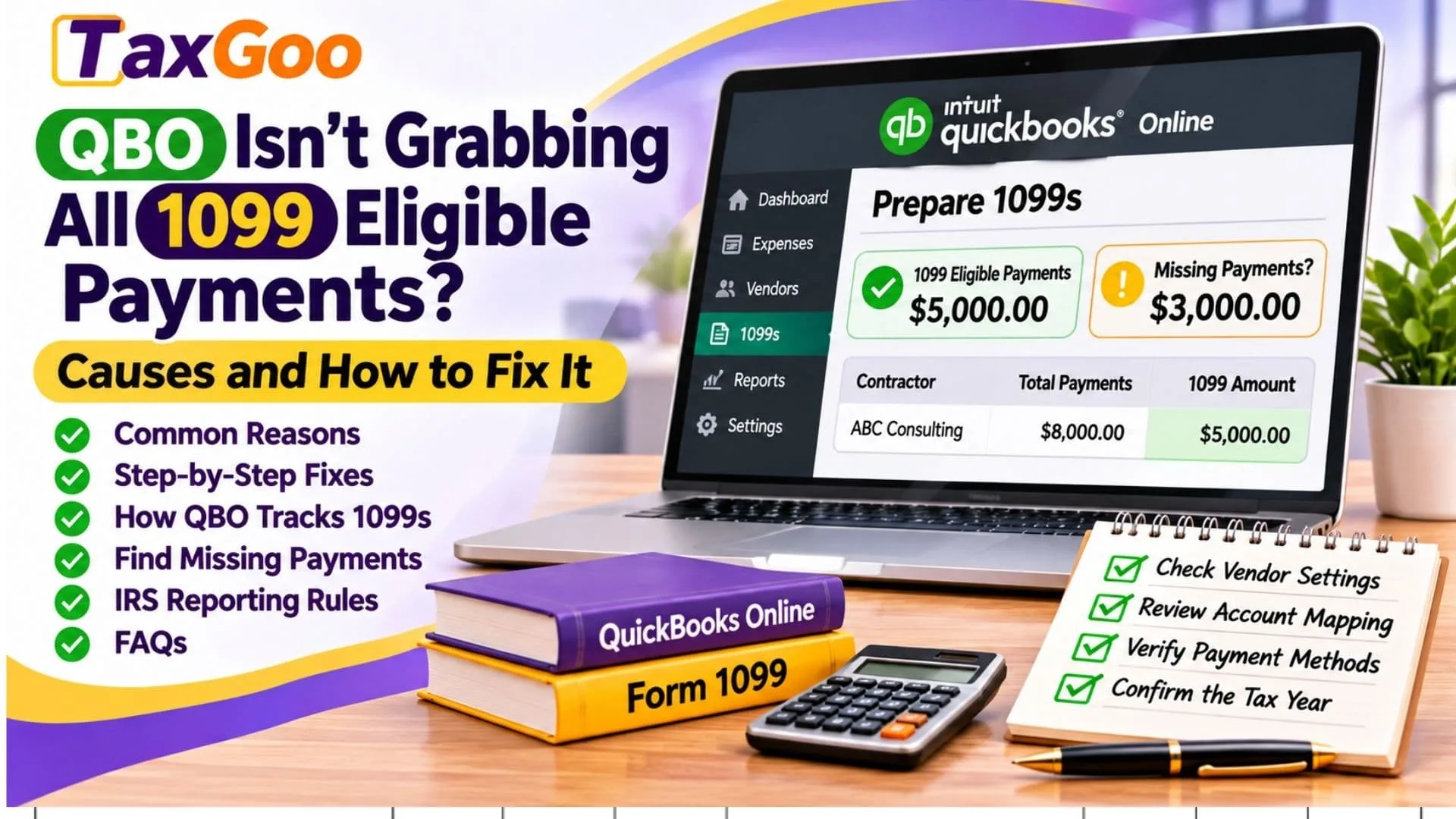
If QBO isn’t grabbing all 1099 eligible payments, the problem is often related to how QuickBooks Online identifies and categorizes contractor transactions. QuickBooks uses vendor information, payment methods, account mapping, and IRS reporting requirements to determine which payments appear in its 1099 preparation workflow. For example, payments made by check, cash, or certain bank transfers may qualify for Form 1099-NEC reporting, while payments processed through credit cards or third-party payment networks are generally excluded from the payer’s Form 1099-NEC totals because they may be reportable by payment settlement entities on Form 1099-K. Missing payments can also result from contractors not being marked for 1099 tracking, expenses being assigned to unmapped accounts, or transactions falling outside the selected tax year. Understanding these issues can help business owners, bookkeepers, and accountants correct QuickBooks 1099 payment discrepancies, reconcile contractor expenses, and prepare more accurate tax forms.
How QuickBooks Online Tracks 1099 Payments
QuickBooks Online uses information from your vendor records and recorded transactions to identify payments that may need to be reported on Forms 1099-NEC or 1099-MISC.
Generally, the software evaluates several factors:
- Whether the contractor is marked for 1099 tracking.
- Whether the payment falls within the selected calendar year.
- Whether the expense account is mapped to the correct 1099 category.
- Whether the payment method qualifies for reporting by your business.
- Whether the contractor’s reportable payments meet the applicable IRS threshold.
A payment can appear in your expense reports without appearing in your 1099 totals. That difference does not always indicate a bookkeeping error.
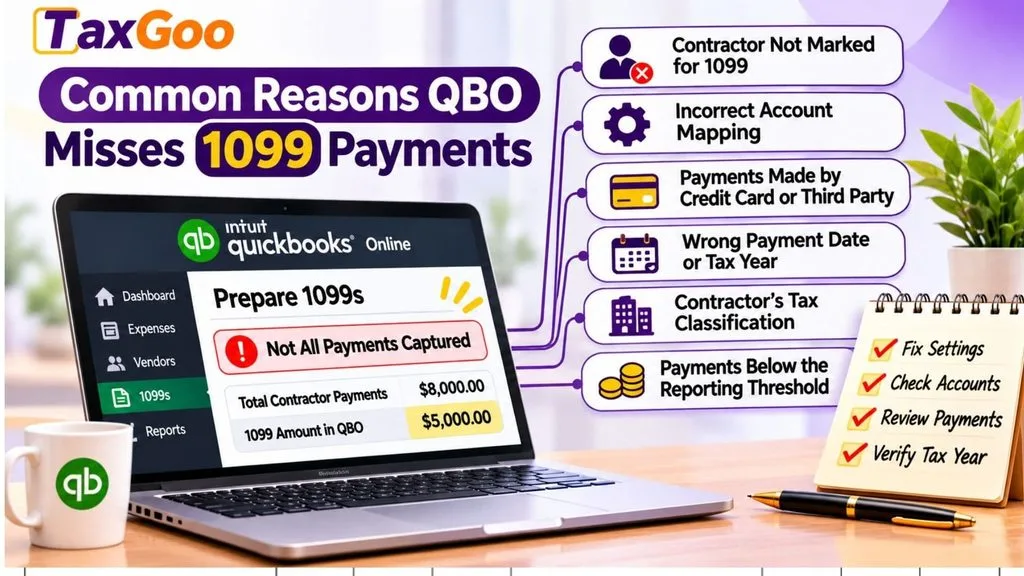
Common Reasons QBO Is Missing 1099 Eligible Payments
1. The Contractor Is Not Marked for 1099 Tracking
QuickBooks may exclude a contractor from the 1099 preparation process if the vendor record is not configured correctly.
How to Fix It
Open QuickBooks Online and navigate to your contractor or vendor list.
Select the contractor, open their information, and check whether the 1099 tracking option is enabled.
Save any necessary changes, then return to the 1099 preparation workflow to review the totals.
2. The Expense Account Is Not Mapped Correctly
QBO relies on account mapping to identify transactions associated with specific 1099 boxes.
For example, payments recorded under subcontractor expenses may be included if that account is mapped correctly.
However, payments recorded under another account, such as general business expenses, may be omitted.
How to Fix It
Open the 1099 preparation workflow and review the accounts assigned to each reporting category.
Compare the mapped accounts with the accounts used for contractor transactions.
Add any eligible accounts that are missing from the mapping.
Avoid mapping unrelated expense categories merely to increase the reported total.
3. Payments Were Made Through Credit Cards or Third-Party Networks
Payments made through credit cards and qualifying third-party payment networks are generally not reported by the business on Form 1099-NEC or Form 1099-MISC.
These transactions may instead be reportable on Form 1099-K by the payment settlement entity.
How to Fix It
Review the payment methods used for the contractor.
Separate payments made through credit cards or third-party networks from payments made by check, cash, or qualifying direct bank transfers.
Do not manually add excluded payment card transactions to Form 1099-NEC simply because they are missing from the QBO total.
4. Payments Were Recorded in the Wrong Account
Some contractor payments may have been assigned to an expense category that does not reflect the nature of the payment.
For example, a contractor payment may have been recorded under office supplies instead of contract labor.
How to Fix It
Review the original transaction and determine the appropriate accounting classification.
If the category is incorrect, update it based on the actual expense.
Then verify that the appropriate account is included in the 1099 mapping.
5. The Payment Date Falls Outside the Reporting Year
Form 1099 reporting generally follows the calendar year in which the reportable payment was made.
A contractor bill dated in December may not be reportable for that year if the payment was not made until January.
How to Fix It
Review the actual payment dates rather than relying only on invoice or bill dates.
Make sure the 1099 preparation workflow is set to the correct tax year.
For example, a contractor invoice dated December 20, 2025, but paid January 10, 2026, generally belongs in the 2026 payment reporting period.
6. The Contractor’s Tax Classification Affects Reporting
Not every vendor payment requires Form 1099 reporting.
Payments to corporations are generally exempt from many Form 1099-NEC reporting requirements, although exceptions apply.
How to Fix It
Review the contractor’s completed Form W-9.
Confirm the legal name, taxpayer identification number, and federal tax classification.
Determine whether the payment is reportable based on the contractor’s classification and the type of service or payment.
7. Payments Were Entered as Transfers or Other Transaction Types
A payment may not appear in the expected 1099 total if it was recorded as a transfer, journal entry, or another transaction type that does not connect properly to the contractor’s vendor record.
How to Fix It
Locate the transaction and verify how it was recorded.
Check whether the correct contractor is associated with the payment and whether the transaction accurately represents the expense.
Correct genuine bookkeeping errors rather than creating duplicate transactions to force the amount into the 1099 report.
8. Payments Are Below the IRS Reporting Threshold
A contractor may be missing because their eligible payments do not meet the reporting threshold.
The threshold depends on the tax year.
| Payment Year | General Form 1099-NEC Threshold |
|---|---|
| 2025 | $600 |
| 2026 | $2,000 |
For payments made in 2026, the general Form 1099-NEC reporting threshold increased to $2,000. Payments made after 2026 are subject to inflation-adjusted thresholds. Backup withholding can also trigger reporting regardless of the payment amount. Internal Revenue Service
How to Fix It
Confirm the reporting year and compare the contractor’s eligible payments against the applicable threshold. Do not include excluded payment methods merely to reach the minimum.
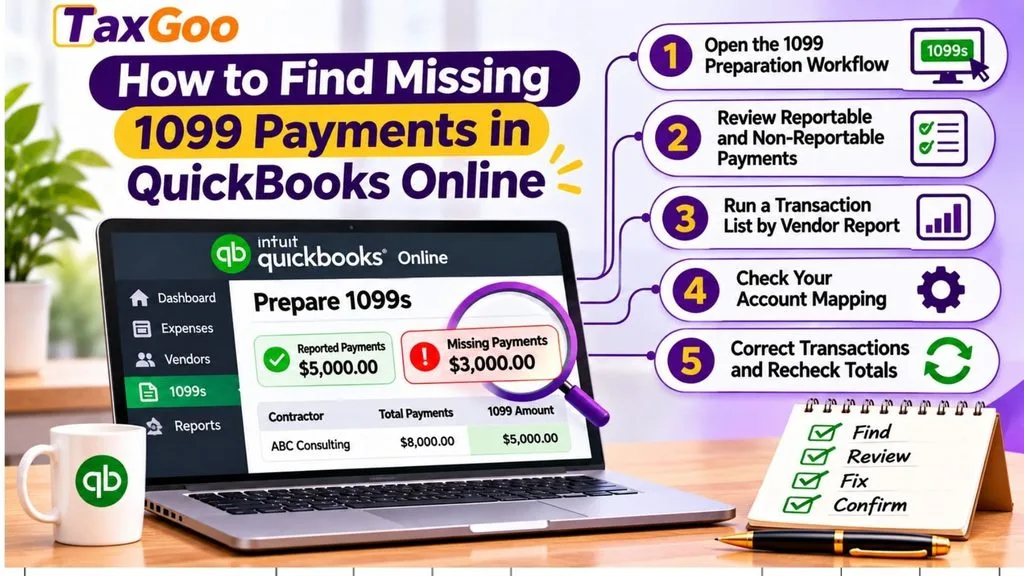
How to Find Missing 1099 Payments in QuickBooks Online
Follow these steps to identify the difference between total contractor payments and reportable payments.
Step 1: Open the 1099 Preparation Workflow
In QuickBooks Online, navigate to the Contractors section and select the option to prepare 1099 forms.
Continue to the payment review stage.
Step 2: Review Reportable and Non-Reportable Payments
Find the contractor whose total appears incorrect.
Select the payment amount to examine the transaction details.
Use the available dropdown to switch between reportable and non-reportable payments.
This helps identify payments excluded because of their payment method, account classification, or other reporting rules. QuickBooks
Step 3: Run a Transaction List by Vendor Report
Go to Reports > Standard reports and search for Transaction List by Vendor.
Customize the report using the appropriate calendar year and contractor.
Include the Split column to identify the accounts associated with the transactions.
If a transaction shows SPLIT, open it to examine the underlying expense accounts. QuickBooks
Step 4: Review Account Mapping
Return to the 1099 preparation workflow and locate the account mapping section.
Verify that each expense account containing reportable contractor payments is mapped to the appropriate Form 1099-NEC or Form 1099-MISC box.
Step 5: Correct Transactions and Recheck Totals
Correct any genuine errors in vendor assignment, expense classification, payment date, or payment method.
Return to the 1099 preparation screen and verify that the totals now match your records.
Example: Why QBO Shows Less Than Your Contractor Payments
Suppose your business paid a contractor $8,000 during 2026.
| Payment Method | Amount | Generally Included in 1099-NEC |
|---|---|---|
| Business check | $3,000 | Yes |
| Direct bank transfer | $2,000 | Yes |
| Credit card | $2,000 | No |
| PayPal payment for goods or services | $1,000 | No |
| Total Payments | $8,000 | $5,000 |
In this example, QBO may correctly report $5,000 instead of $8,000 because the remaining $3,000 was paid through methods generally reportable by payment settlement entities.
The exact treatment depends on the transaction and payment arrangement.
Frequently Asked Questions
Why Is QuickBooks Not Showing All My 1099 Payments?
Common reasons include excluded payment methods, incorrect account mapping, missing contractor tracking settings, and payments outside the selected tax year.
Does QBO Include Zelle Payments on 1099-NEC?
Zelle payments made directly through a bank account may need to be included when they otherwise qualify for Form 1099-NEC reporting. Check how the payment was recorded and whether the transaction is subject to Form 1099-K reporting.
Are ACH Payments Included in QuickBooks 1099 Totals?
Qualifying direct ACH payments are generally included when they meet the applicable reporting requirements and are recorded correctly.
Why Are Credit Card Payments Excluded From 1099-NEC?
Payment card transactions are generally handled under Form 1099-K reporting rules rather than being reported again by the business on Form 1099-NEC.
Can I Manually Add Missing 1099 Payments in QBO?
You can correct the underlying contractor transactions and account mapping. Avoid creating duplicate expenses simply to increase the reported total.
Final Checklist Before Filing Your 1099 Forms
- Confirm the correct tax year.
- Verify contractor names and taxpayer identification numbers.
- Review Form W-9 information.
- Confirm that eligible contractors are active and tracked for 1099 reporting.
- Check all relevant expense account mappings.
- Review reportable and excluded payments.
- Verify payment methods and transaction dates.
- Confirm the correct annual reporting threshold.
- Reconcile contractor payment totals with your accounting records.
- Preview Forms 1099-NEC and 1099-MISC before submission.
When QBO isn’t grabbing all 1099 eligible payments, the best solution is to determine whether the missing amounts are genuinely reportable before changing your records. Reviewing contractor settings, payment methods, expense accounts, and reporting thresholds can help you prepare accurate 1099 forms without duplicating transactions or overstating contractor compensation.