Form W-9, officially called the Request for Taxpayer Identification Number and Certification, is an IRS form used to collect taxpayer information from independent contractors, freelancers, vendors, and other individuals or businesses that receive certain types of payments. The form collects important information, including your legal name, business name (if applicable), federal tax classification, mailing address, and taxpayer identification number (TIN). Your TIN may be your Social Security number (SSN) or Employer Identification Number (EIN). Businesses use this information to prepare applicable tax documents, including Form 1099-NEC and Form 1099-MISC. QuickBooks allows businesses to invite contractors to provide their tax information electronically. When a contractor receives an invitation, they can sign in to a QuickBooks Money account, complete their W-9, and submit it digitally. After submission, the contractor’s tax information is made available to the requesting business through QuickBooks Online. The business can access the contractor’s personal information through the Details tab, while a PDF copy of the signed W-9 is stored in the Documents tab of the contractor’s profile.
Important: A W-9 is generally provided to the business requesting your taxpayer information. It is not normally filed with the IRS. Therefore, if you submitted a W-9 through QuickBooks, you are usually looking for the copy stored in QuickBooks or held by the business that requested it.
How To Find Your W-9 Through QuickBooks
The steps depend on whether you are the contractor who completed the W-9 or the business that collected it. QuickBooks provides different access options for each.
Method 1: Find Your W-9 Through Your QuickBooks Money Account
If you completed your W-9 using an invitation from a business, you can access and manage your submitted tax information through QuickBooks Money.
Follow these steps:
- Open the email invitation you received from the business requesting your W-9.
- Select the link provided in the invitation.
- If you already have a QuickBooks Money account, select Sign In.
- If you do not have an account, follow the instructions to create a limited QuickBooks Money account.
- Sign in using the same email address associated with your original W-9 invitation.
- Navigate to the Incoming forms tab.
- Select Manage W-9 if you have already completed a W-9.
- Review your existing tax information and follow the available instructions to manage or resend your W-9.
If you are completing the form for the first time, select Create W-9 instead.
The Incoming forms section is where contractors can manage their W-9 information and access tax forms made available through QuickBooks.
Note: QuickBooks may provide a limited account specifically for completing W-9 forms and accessing 1099 documents. You do not necessarily need a full QuickBooks business subscription to use this option.
Method 2: Ask The Business That Requested Your W-9 For A Copy
If you submitted your W-9 through QuickBooks but cannot find a downloadable PDF in your own account, contact the business that sent the original invitation.
The business can access the signed W-9 through your contractor profile in its QuickBooks Online account.
Ask the business to:
- Sign in to its QuickBooks Online account.
- Open the Payroll menu.
- Select Contractors.
- Find and select your name from the contractor list.
- Open your contractor profile.
- Select the Documents tab.
- Locate the signed W-9 document.
- Download the PDF copy and provide it to you through an appropriate secure method.
The business can also open the Details tab to review the personal and tax information you provided.
This is particularly useful when you need an actual PDF copy of your previously submitted W-9 for your personal records.
Method 3: Contact QuickBooks Support
If you cannot access your account or locate your submitted W-9, you may need additional assistance.
Before contacting support:
- Make sure you are using the correct Intuit account.
- Check the email address that received the original W-9 invitation.
- Confirm that you completed and submitted the W-9.
- Check whether the requesting business received your submission.
If the document is still unavailable, contact QuickBooks Support and explain that you completed a contractor W-9 through an invitation but cannot locate the submitted form.
You may also ask the requesting business to verify whether your W-9 submission was received successfully.
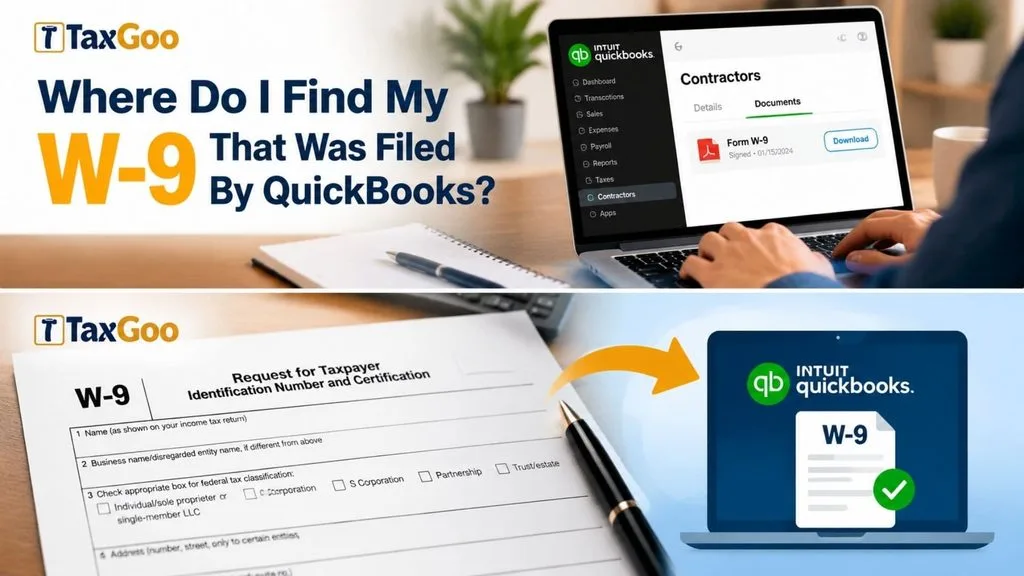
How Businesses Can Find A Contractor’s Submitted W-9 In QuickBooks Online
If you are a business owner, employer, or accountant who requested W-9 information from a contractor, you can locate the signed document through the contractor’s profile.
Follow these steps:
- Sign in to QuickBooks Online.
- Select All apps.
- Open Payroll and select Contractors if you have a payroll subscription.
- If you do not have a payroll subscription, navigate to Team and select Contractors.
- Find the contractor whose W-9 you want to access.
- Select the contractor’s name to open their profile.
- Open the Documents tab.
- Locate the signed W-9 PDF.
- Select the available download option to save the document.
The PDF contains the W-9 information submitted and digitally signed by the contractor.
Understanding The Contractor Profile Tabs
QuickBooks provides separate tabs for reviewing contractor information and accessing submitted documents.
Details Tab
The Details tab contains the contractor’s personal and tax information, including the information provided during the W-9 process.
Documents Tab
The Documents tab stores the PDF copy of the contractor’s signed W-9.
If you need the actual signed document rather than simply the contractor’s tax information, check the Documents tab.
What If Your W-9 Is Missing From QuickBooks?
Sometimes a contractor may complete the invitation process but still be unable to locate the W-9 document.
There are several possible reasons.
You Have Not Completed The W-9 Invitation
Receiving an invitation does not mean the W-9 has already been submitted.
You must open the invitation, sign in to your QuickBooks Money account, complete the required information, and digitally sign and submit the form.
If you have not completed these steps, the business may still be waiting for your information.
You Are Using The Wrong QuickBooks Account
Your W-9 is associated with the account used during the original submission.
If you have multiple Intuit accounts or email addresses, make sure you are signing in with the account associated with the invitation.
Using a different account may prevent you from accessing your existing tax information.
The Business Has Not Received Your W-9
If the business cannot find your signed W-9, ask it to check your contractor profile.
The business can review the contractor’s status and determine whether the information is still waiting to be submitted.
If necessary, the business can send another invitation or reminder.
You Submitted Your W-9 Outside QuickBooks
If you completed a paper W-9 or sent a PDF directly to the business by email, the document may not automatically appear in your QuickBooks Money account.
In this situation, contact the business and request a copy of the W-9 it received.
The business may have stored the document separately from the electronically submitted QuickBooks forms.
You Are Using QuickBooks Desktop
QuickBooks’ electronic contractor W-9 invitation feature is available through QuickBooks Online and QuickBooks Online Contractor Payments. It is not available in QuickBooks Desktop.
If your business uses QuickBooks Desktop, ask the business or accounting department where it stores contractor tax documents.
How To Update Your W-9 Information In QuickBooks
If your legal name, business address, or taxpayer identification information has changed, you may need to update your W-9.
QuickBooks allows contractors to manage their existing W-9 information through their QuickBooks Money account.
Follow these steps:
- Sign in to the QuickBooks Money account you used to complete your original W-9.
- Navigate to the Incoming forms tab.
- Select Manage W-9.
- Review your existing information.
- Update the applicable information.
- Follow the instructions to submit your updated W-9.
You generally only need to complete your W-9 once. If another business sends you a QuickBooks invitation, you may be able to use your existing W-9 information rather than completing a completely new form.
If you make changes, inform the business requesting your information so it can verify that the updated details are available.
Make sure any changes are submitted before the business files your applicable 1099 with the IRS.
How To Find Your 1099 Form In QuickBooks
A W-9 and a 1099 are different tax documents.
Your W-9 provides taxpayer identification information to the business paying you. A 1099 reports certain payments made to you during the tax year.
If you are actually looking for a 1099 rather than your W-9, you can access it through QuickBooks when the business makes the form available.
Steps To Access Your 1099
- Wait for the business or client to prepare and submit your 1099.
- Check your email for a QuickBooks notification that the document is ready.
- Open the notification email.
- Select the link to access your tax form.
- Sign in to your QuickBooks Money or applicable Intuit account.
- Navigate to the Incoming forms section.
- Select the available 1099 form.
- Open, view, or download the document.
If you do not receive an email notification, check your spam or junk folder.
You can also contact the business that paid you and request a copy of your 1099.

Frequently Asked Questions About Finding W-9 Forms In QuickBooks
Can I Download My W-9 Directly From QuickBooks?
You can manage your submitted W-9 through the Incoming forms section of your QuickBooks Money account. However, if you specifically need a PDF copy of the signed document and cannot find a download option, ask the business that requested it. The business can access the PDF through your contractor profile’s Documents tab.
Does QuickBooks Automatically Send My W-9 To The IRS?
No. A W-9 is generally provided to the business requesting your taxpayer information. It is not normally submitted to the IRS. The business uses the information to prepare applicable tax documents, such as Form 1099-NEC or Form 1099-MISC.
Can I Access My W-9 Without A Full QuickBooks Subscription?
Yes. If a business invites you to complete a W-9, you may create a limited QuickBooks Money account specifically for managing tax forms. You do not necessarily need a full business subscription.
How Do I Know If My W-9 Was Successfully Submitted?
After completing and digitally signing your W-9, QuickBooks makes the information available to the requesting business and sends an email confirmation. You can also ask the business to verify that your information has been received.
Can I Use The Same W-9 For Multiple Businesses?
Yes. You generally only need to complete your W-9 once. If another business invites you through QuickBooks, you may be able to use your existing W-9 information and send it through the new invitation.
What Should I Do If I Cannot Find My W-9 In The Documents Tab?
If you are the contractor, contact the business that requested your W-9 and ask it to check your contractor profile. If you are the business owner, verify that the contractor completed and digitally signed the invitation. A document that has not been submitted may still show a waiting status instead of being available for download.
Is My W-9 The Same As My 1099?
No. Form W-9 collects your taxpayer information, while Form 1099 reports certain payments made to you. You provide a W-9 to the business requesting your information, and the business prepares the applicable 1099 when required.
Final Review: Where To Find Your Submitted W-9
If you submitted a W-9 through QuickBooks, the correct place to look depends on your role.
If You Are A Contractor:
- Sign in to the QuickBooks Money account associated with your invitation.
- Open the Incoming forms tab.
- Select Manage W-9 to review or manage your existing information.
- Contact the requesting business if you need a downloadable PDF copy.
If You Are A Business Owner:
- Sign in to QuickBooks Online.
- Open Payroll and select Contractors, or use Team and Contractors if you do not have a payroll subscription.
- Select the contractor’s profile.
- Open the Documents tab.
- Locate and download the signed W-9 PDF.
Finding your submitted W-9 in QuickBooks should be straightforward once you know which account and section to access. If the document is not available in your account, the business that requested it can usually retrieve the signed PDF from the contractor’s Documents tab and provide you with a copy.